The community help forum (help.nextcloud.com) is for home and non-enterprise users. Support is provided by other community members on a best effort / “as available” basis. All of those responding are volunteering their time to help you.
If you’re using Nextcloud in a business/critical setting, paid and SLA-based support services can be accessed via portal.nextcloud.com where Nextcloud engineers can help ensure your business keeps running smoothly.
Getting help
In order to help you as efficiently (and quickly!) as possible, please fill in as much of the below requested information as you can.
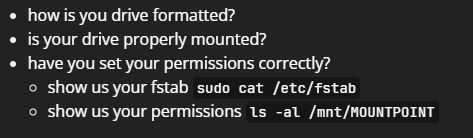
Before clicking submit: Please check if your query is already addressed via the following resources:
(Utilizing these existing resources is typically faster. It also helps reduce the load on our generous volunteers while elevating the signal to noise ratio of the forums otherwise arising from the same queries being posted repeatedly).
Some or all of the below information will be requested if it isn’t supplied; for fastest response please provide as much as you can.
Operating system and version (e.g., Ubuntu 24.04):
Ubuntu 24.04
Web server and version (e.g, Apache 2.4.25):
Server version: Apache/2.4.58 (Ubuntu)
Server built: 2026-03-05T17:31:54
Reverse proxy and version _(e.g. nginx 1.27.2)
None
PHP version (e.g, 8.3):
PHP 8.3.6 (cli) (built: Mar 20 2026 02:32:55) (NTS)
Copyright (c) The PHP Group
Is this the first time you’ve seen this error? (Yes / No):
Yes
When did this problem seem to first start?
After initial setup of added HDD
Installation method (e.g. AlO, NCP, Bare Metal/Archive, etc.)
Snap
Are you using CloudfIare, mod_security, or similar? (Yes / No)
No
Summary of the issue you are facing:
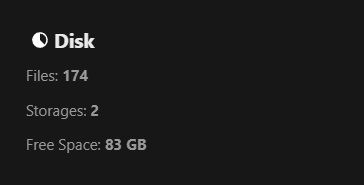
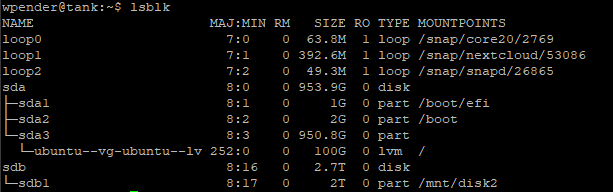
My 2TB HDD is not showing up within the free space for system info.
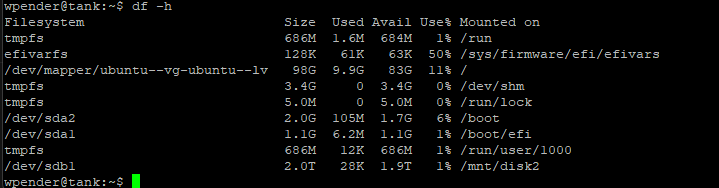
I am very new to linux as well as nextcloud. Therefore I took screen shots of everything to show what I have for my setup. I am just trying to add 2tb hdd, however it doesn’t show up as additional free space within the system information. Please help and I thank you in advanced for your assistance.
Hey @wpender, welcome to the Nextcloud community and thanks for supporting Nextcloud snap
Sorry to hear you are having issues with your Nextcloud snap installation. If you’ve come this far, you’re on the right track! There is a good chance someone in the community has had a similar issue and knows how to resolve it.
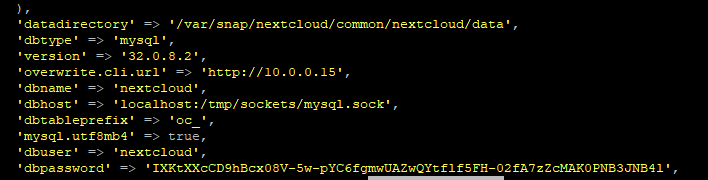
In order to help you we’ll need some Information to get an Idea of your setup, so complete the required support template and post the output of the following command allowing us to look at your redacted configuration file:
sudo nextcloud.occ config:list
Nextcloud logs are very verbose, thus your logs will certainly help resolve your issue. access your logs by following how to manage Nextcloud snap logs or you could run the debugging script and post the result here or paste the result of the following command:
Was this really necessary to post? NextCloud runs on Linux OS so I was trying to politely explain I am new to linux, but unfortinately politeness doesn’t go very far here.
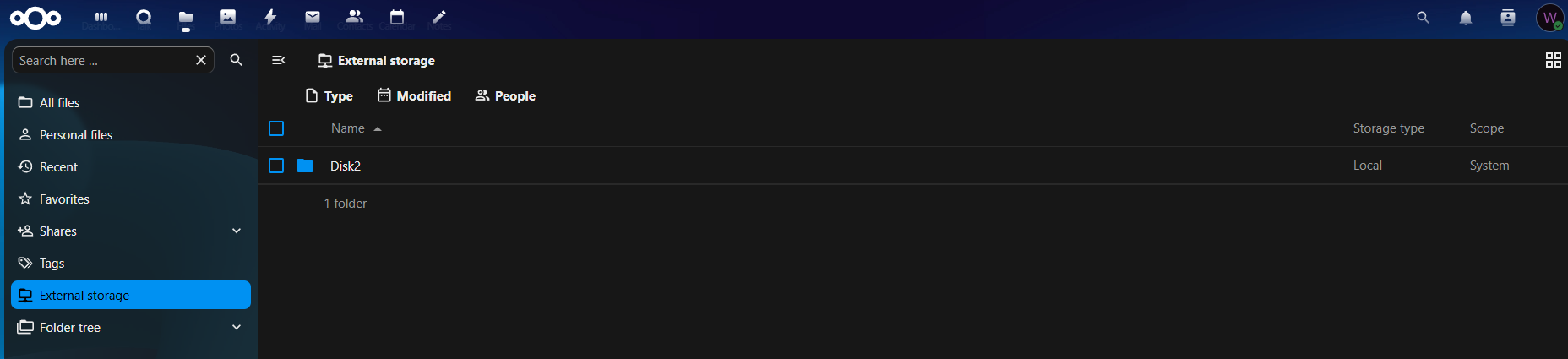
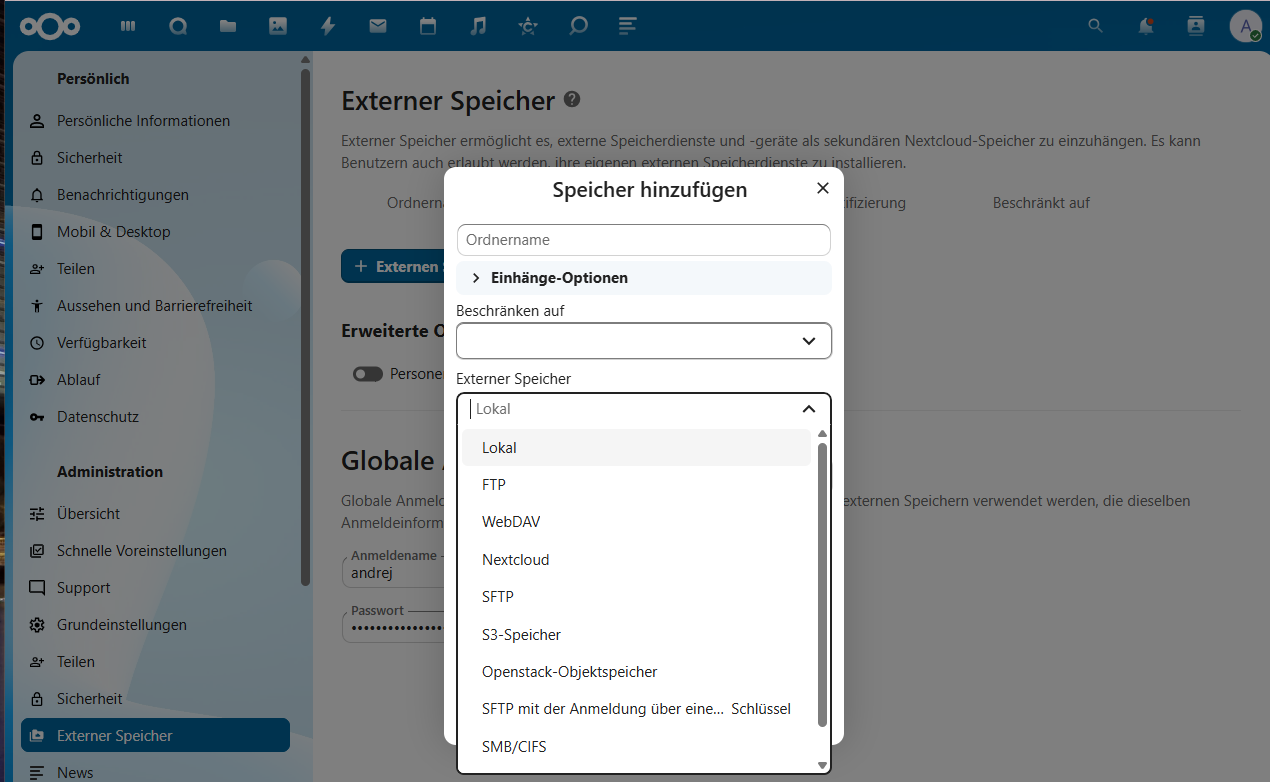
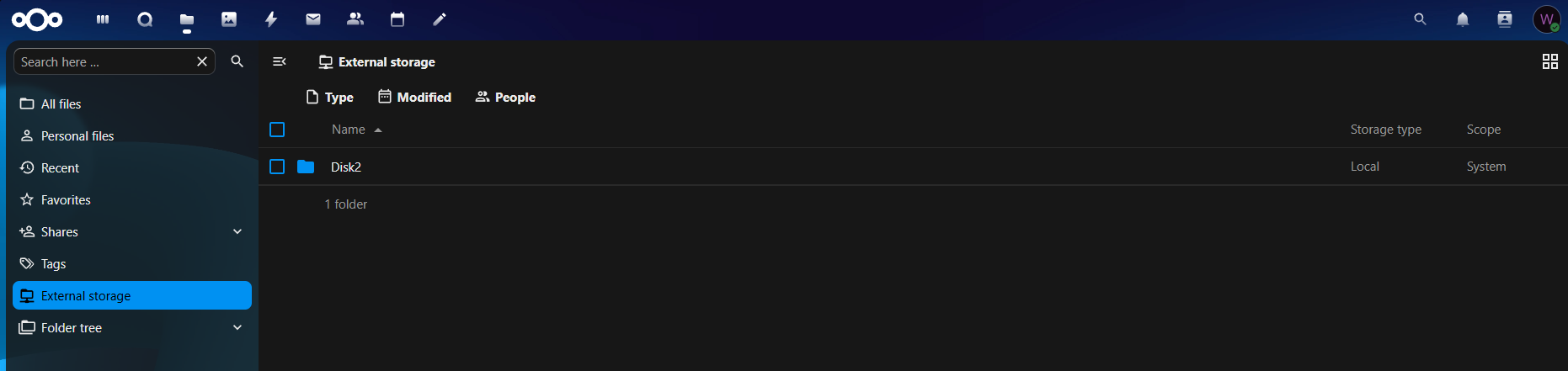
Yes I have added the App for external storage and added the HDD as local within settings. Then I gave the drive permissions as well to be used by NextCloud. So, I have doen that but to no avail.
Thank you for your suggestion though. Greatly appreciated.
Mr. Snap, I’m sorry I just read this post by you. However, I can’t post the information you are requesting as there is only an embed limit of 2 per post and so I am unable top post ALL screen shots.
If you know of a better way to do this, please let me know. Thanks.
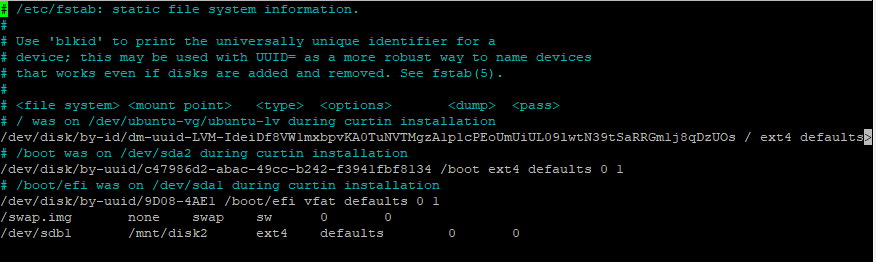
I do not recall the permissions I gave the mounted drive. I am happy to run a command to see what drives have which permissions if there is one and then post the results within one upload hopefully as there is a 2 upload limit.
# /etc/fstab: static file system information.

#

# Use 'blkid' to print the universally unique identifier for a

# device; this may be used with UUID= as a more robust way to name devices

# that works even if disks are added and removed. See fstab(5).

#

#

# / was on /dev/ubuntu-vg/ubuntu-lv during curtin installation

/dev/disk/by-id/dm-uuid-LVM-IdeiDf8VW1mxbpvKA0TuNVTMgzA1p1cPEoUmUiUL09lwtN39tSaRRGm1j8qDzUOs / ext4 defaults 0 1

# /boot was on /dev/sda2 during curtin installation

/dev/disk/by-uuid/c47986d2-abac-49cc-b242-f3941fbf8134 /boot ext4 defaults 0 1

# /boot/efi was on /dev/sda1 during curtin installation

/dev/disk/by-uuid/9D08-4AE1 /boot/efi vfat defaults 0 1
/swap.img       none    swap    sw      0       0
/dev/sdb1       /mnt/disk2      ext4    defaults        0       0
UUID=61387973-32fd-4fe0-8326-0966a1a62008       /mnt/nextcloud  ext4    default,nofail  0       2
Sorry not sure why it pasted this way, but that is fstab.




 … but we’re not here to teach linux right?