Built-In CODE behind reverse proxy problems

Dear all,

I am having problems when trying to install Nextcloud on my home server using Podman containers and running everything behind a caddy reverse proxy container.

I am able to install Nextcloud but have two issues which I am not able to solve.

  1. I can not open Office documents, because Nextcloud is unable to open the document with the integrated Code server, which is installed. As far as I understand it, this is caused by the fact that the Nextcloud container is running behind a reverse proxy and somehow can not connect to the integrated Code server.
  2. I am unable to login into the Nextcloud instance via the Nextcloud Desktop client because the returned server url does not seam to start with https. This is probably also caused from set up where the reverse proxy send the traffic via http to the Nextcloud container.

I already asked ChatGPT and Google Gemini and tried every approach I found online, but somehow I can not get it to work.

My reverse proxy is set up the following way:

[Container]
ContainerName=caddy-reverse-proxy
Image=docker.io/library/caddy:latest
AutoUpdate=registry
PublishPort=80:80
PublishPort=443:443
Volume=/mnt/storage/reverse-proxy/Caddyfile:/etc/caddy/Caddyfile:z
Volume=/mnt/storage/reverse-proxy/data:/data:z
Network=host

[Service]
Restart=always

[Install]
WantedBy=default.target
{
    email my-address@proton.me
}

nextcloud.my.domain {
    reverse_proxy 127.0.0.1:8080 
} 

The Nextcloud container setup is the following way:

[Pod]
PodName=nextcloud
PublishPort=8080:80

[Service]
Restart=always

[Install]
WantedBy=default.target
[Container]
ContainerName=mariadb-nextcloud
Pod=nextcloud.pod
Image=docker.io/library/mariadb:latest
AutoUpdate=registry
Volume=/mnt/storage/nextcloud/mariadb:/var/lib/mysql:z
Environment=MYSQL_DATABASE=nextcloud
Environment=MYSQL_USER=USERNAME
Environment=MYSQL_PASSWORD=PASSWORD
Environment=MYSQL_ROOT_PASSWORD=PASSWORD
Exec=--transaction-isolation=READ-COMMITTED --log-bin=binlog --binlog-format=ROW --max_allowed_packet=256000000

[Unit]
After=nextcloud.pod
Requires=nextcloud.pod

[Service]
Restart=always

[Install]
WantedBy=default.target
[Container]
ContainerName=caddy-nextcloud
Pod=nextcloud.pod
Image=docker.io/library/caddy:latest
AutoUpdate=registry
Volume=/mnt/storage/nextcloud/nextcloud:/var/www/html:z
Volume=/mnt/storage/nextcloud/caddy/Caddyfile:/etc/caddy/Caddyfile:z

[Unit]
After=nextcloud.pod
After=mariadb-nextcloud.container
After=nextcloud-app.container
Requires=nextcloud.pod
Requires=mariadb-nextcloud.container
Requires=nextcloud-app.container

[Service]
Restart=always

[Install]
WantedBy=default.target
[Container]
ContainerName=nextcloud-app
Pod=nextcloud.pod
Image=docker.io/library/nextcloud:fpm
AutoUpdate=registry
Environment=MYSQL_DATABASE=nextcloud
Environment=MYSQL_USER=USERNAME
Environment=MYSQL_PASSWORD=PASSWORD
Environment=MYSQL_HOST=nextcloud
Volume=/mnt/storage/nextcloud/nextcloud:/var/www/html:z
Volume=/mnt/storage/nextcloud/data:/var/www/html/data:z

[Unit]
After=nextcloud.pod
After=mariadb-nextcloud.container
Requires=nextcloud.pod
Requires=mariadb-nextcloud.container

[Service]
Restart=always

[Install]
WantedBy=default.target
:80 {

    root * /var/www/html
    file_server

    php_fastcgi nextcloud-app:9000 {
        root /var/www/html
        env front_controller_active true
    }
    encode gzip
    log {
        output file /data/nextcloud-access.log
    }
    header {
        Strict-Transport-Security "max-age=15768000;includeSubDomains;preload"
    }
    # .htaccess / data / config / ... shouldn't be accessible from outside
    @forbidden {
        path /.htaccess
        path /data/*
        path /config/*
        path /db_structure
        path /.xml
        path /README
        path /3rdparty/*
        path /lib/*
        path /templates/*
        path /occ
        path /console.php
    }
    respond @forbidden 404
    redir /.well-known/carddav /remote.php/dav 301
    redir /.well-known/caldav /remote.php/dav 301
}

It would be great if someone has an idea, how my two problems can be addressed, but Nextcloud is such a cool project and it would like to use it more.

Best regards,
Phillip
I was able to fix the second problem on my own in the following way.

This is new Caddyfile for the reverse proxy:

nextcloud.my.domain {
    # Forward requests to the Nextcloud pod's published port
    reverse_proxy 127.0.0.1:8080 {
        # Pass essential headers to the downstream service
        header_up Host {host}
        header_up X-Real-IP {remote_ip}
        header_up X-Forwarded-For {remote_ip}
        header_up X-Forwarded-Proto {scheme}
    }
}

And I had to add the following lines to the config.php file of the nextcloud server:

  'trusted_proxies'   => ['127.0.0.1'], // The IP of your reverse proxy
  'overwrite.cli.url' => 'https://nextcloud.my.domain',
  'overwritehost'     => 'nextcloud.my.domain',
  'overwriteprotocol' => 'https',

But the problem for the Code server to edit dokuments still does not work. If anyone has an idea on how this could be fixed, then please let me know.
It would be great, if I could get the Document server to work.

I still keep getting the following error when trying to start the integrated office server:

 Your browser has been unable to connect to the Collabora server: http://nextcloud.my.domain

This URL is determined on the Collabora server either from the configured URL or the server_name parameter in coolwsd.xml.

I have tried everything that I could find online and really do not understand where this error comes from. There has to be some kind of problem caused by the reverse proxy.

this seems to be localhost… it should be the reverse proxy IP and cannot be localhost

Ok. Do I then have to put the address of my server on the local network in there? I have tried this, but I still get the same error message after restarting all the containers, which is

 Your browser has been unable to connect to the Collabora server: http://nextcloud.ppflaum.ch

This URL is determined on the Collabora server either from the configured URL or the server_name parameter in coolwsd.xml.

it looks like you client thinks CODE is located at this address. Build-In CODE (which is not recommended at all) is running at specific path https://mydomain-tld/apps/richdocumentscode/proxy.php?req= - there is a Office admin setting where you choose dedicated vs built-in CODE. For details troubleshooting and other references please review Collabora integration guide

Thank you for your answer.

I have tried to setup a dedicated Collabora container but I get the following error after inserting the following address into the office settings in Nextcloud https:://collabora.my.domain:

Your browser has been unable to connect to the Collabora server: http://collabora.ppflaum.ch

This URL is determined on the Collabora server either from the configured URL or the server_name parameter in coolwsd.xml.

I have used the following container setup:

[Container]
ContainerName=collabora-nextcloud
Pod=nextcloud.pod
Image=docker.io/collabora/code:latest
AutoUpdate=registry
Environment=domain=collabora.my.domain
Environment=server_name=collabora.my.domain
Environment=extra_params=--o:ssl.enable=false

[Unit]
After=nextcloud.pod
Requires=nextcloud.pod

[Service]
Restart=always

[Install]
WantedBy=default.target

I use the following Caddyfile for the reverse proxy:

{
    email my-address@proton.me
}

nextcloud.my.domain {
    reverse_proxy 127.0.0.1:8080 {
        header_up Host {host}
        header_up X-Real-IP {remote_ip}
        header_up X-Forwarded-For {remote_ip}
        header_up X-Forwarded-Proto {scheme}
    }
} 

collabora.my.domain {
    encode gzip 
    reverse_proxy 127.0.0.1:9980 {
        header_up Host {upstream_hostport}
        header_up X-Forwarded-For {remote_host}
        header_up X-Forwarded-Proto {scheme}
    }
}

I have read the reference Collabora integration guide but I am not an expert and I don’t see my mistake.

I think this is a problem:

for some reason your CODE doesn’t recognize it’s scheme.. maybe there is a missing --o:ssl.termination=true see Collabora Integration guide and Collabora CODE for Nextcloud with Docker

than you should either educate yourself or stop trying to maintain such complex integration.

@Phillip.73, this had me searching for ages… so I added troubleshooting

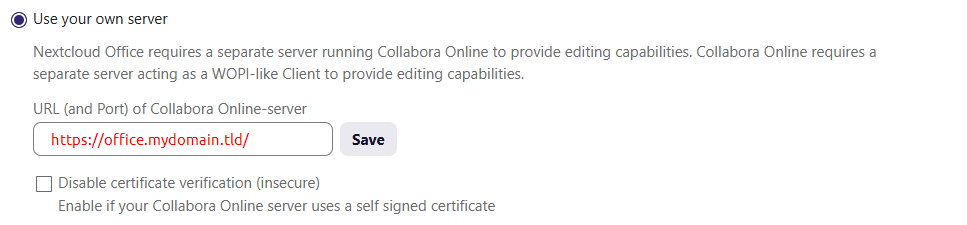
a slash at the end of your server URL is required

I now also added the

-- o:ssl.termination=true

but I still get the same problem, that for some reason Nextcloud tries to reach the http address instead of https.

I really don’t get where this issue comes from, because I can reach the collabora server via my domain.

And I obviously try to educate myself. I already read the documentations and all related forum post and guides I found online.

Thank you for your input. I added the / at the end of my domain, but the still remains. I also added the following Environment argument:

aliasgroup1=https://cloud.mydomain.tld:443,https://cloud\\.mydomain\\.tld:443 # enable for aliasgroup1

I still can not connect the Collabora instance to the Nextcloud instance, with the same error message as before.

It really does not make any sense to me.

I have now tried it without using the reverse proxy with the following Quadlet file:

[Container]
ContainerName=collabora-nextcloud
Pod=nextcloud.pod
Image=docker.io/collabora/code:latest
AutoUpdate=registry
Environment=aliasgroup1=https://collabora.my.domain:9980,https://collabora\\.my\\.domain:9980
Environment=domain=collabora.my.domain
Environment=server_name=collabora.my.domain


[Unit]
After=nextcloud.pod
Requires=nextcloud.pod

[Service]
Restart=always

[Install]
WantedBy=default.target

If I now input https://collabora.my.domain:9980/ in the nextcloud office settings it seems to find the collaborea server but it somehow does not find the seetings page.
I have tried to translate the ngix reverse proxy file from the collabora dokumentation into the following caddy file:


collabora.my.domain {

  reverse_proxy /browser* http://127.0.0.1:9980 {
    header_up Host {host}
  }

  reverse_proxy /hosting/discovery* http://127.0.0.1:9980 {
    header_up Host {host}
  }

  reverse_proxy /hosting/capabilities* http://127.0.0.1:9980 {
    header_up Host {host}
  }

  reverse_proxy /cool/*/ws http://127.0.0.1:9980 {
    header_up Host {host}
    header_up Upgrade {http_upgrade}
    header_up Connection "Upgrade"
    flush_interval -1
  }

  reverse_proxy /cool/adminws* http://127.0.0.1:9980 {
    header_up Host {host}
    header_up Upgrade {http_upgrade}
    header_up Connection "Upgrade"
    flush_interval -1
  }

  reverse_proxy /cool* http://127.0.0.1:9980 {
    header_up Host {host}
  }

  reverse_proxy /lool* http://127.0.0.1:9980 {
    header_up Host {host}
  }
}

As soon as I try to use the reverse proxy it does not find the office server anymore.

you are mixing different things.

reverse_proxy ... http://127.0.0.1:9980 means you are doing “ssl offloading” on you reverse proxy and run plain http to the service. this mode is different from straight connection and requires CODE to run without TLS cert using o:ssl.termination=true and relies on proxy headers to know the original URL.

In opposite if there is no reverse proxy you must configure TLS cert for CODE and advise it to run over https://

Both ways are valid but you need to understand the differences and configure the system in a proper way. Such issues are covered in the guide I liked twice already!

aliasgroup1= should hold the URL of Nextcloud and not the CODE. In docker-compose there is no need for extensive escaping like you do ,https://collabora\\. I would recommend you start without the second URL and check how it looks inside the container (likely an equivalent for docker inspect exists in podman)

from the last caddy config I see you don’t the scheme down anymore.

initial config
new config

this could explain why CODE generates wrong http:// URL.

I would recommend to not jump back and forth between different configs you possibly find on the internet but stick to one architecture and troubleshoot it step by step until it starts working. reading the docs and checking the logs helps more rather simply trial and error with different configurations and AI bots.