AIO Mastercontainer doesn't start all nextcloud containers

The Basics

  • Nextcloud Server version (e.g., 29.x.x):
    • 33.0.2
  • Operating system and version (e.g., Ubuntu 24.04):
    • Debian 13
  • Web server and version (e.g, Apache 2.4.25):
    • AIO container 12.9.2
  • Reverse proxy and version _(e.g. nginx 1.27.2)
    • 1.26.3
  • PHP version (e.g, 8.3):
    • AIO container 12.9.2
  • Is this the first time you’ve seen this error? (Yes / No):
    • Yes
  • When did this problem seem to first start?
    • Fresh install
  • Installation method (e.g. AlO, NCP, Bare Metal/Archive, etc.)
    • AIO
  • Are you using CloudfIare, mod_security, or similar? *(Yes / No)*No

Summary of the issue you are facing:

I installed the AIO mastercontainer via docker. The image is run behind a reverse proxy (nginx 1.26.3). After launching the admin interface and selecting the features (Hub 26 winter, some community containers) the community containers are started and appear green in the UI. The nextcloud core containers are not started. They are even not pulled.

Steps to replicate it (hint: details matter!):

  1. I decided to launch the mastercontainer with docker compose, using this file:

    services:
      nextcloud:
        image: ghcr.io/nextcloud-releases/all-in-one:latest
        container_name: nextcloud-aio-mastercontainer
    
        init: true
        stop_signal: SIGTERM
    
        restart: always
        ports:
          - "127.0.0.1:8084:8080"
    
        environment:
          APACHE_PORT: "11000"
          APACHE_IP_BINDING: "0.0.0.0"
          APACHE_ADDITIONAL_NETWORK: ""
          SKIP_DOMAIN_VALIDATION: "false"
    
        volumes:
          - nextcloud_aio_mastercontainer:/mnt/docker-aio-config
          - /var/run/docker.sock:/var/run/docker.sock:ro
    
    volumes:
      nextcloud_aio_mastercontainer:
        name: nextcloud_aio_mastercontainer
    
  2. Nginx config (the identation is messed up a little bit)

    map $http_upgrade $connection_upgrade {
    default upgrade;
    ‘’ close;
    }
    
    server {
    http2 on;
    
    proxy_buffering off;
    proxy_request_buffering off;
    
    client_max_body_size 0;
    client_body_buffer_size 512k;
    
    proxy_read_timeout 3610s;
    
    
    server_name nc.mydomain.de;
    
    location / {
        proxy_pass http://127.0.0.1:11000$request_uri; # matches APACHE_PORT and APACHE_IP_BINDING.
    
        proxy_set_header X-Forwarded-For $proxy_add_x_forwarded_for;
        proxy_set_header X-Forwarded-Port $server_port;
        proxy_set_header X-Forwarded-Scheme $scheme;
        proxy_set_header X-Forwarded-Proto $scheme;
        proxy_set_header X-Real-IP $remote_addr;
        proxy_set_header Host $host;
        proxy_set_header Early-Data $ssl_early_data;
    
        # Websocket
        proxy_http_version 1.1;
        proxy_set_header Upgrade $http_upgrade;
        proxy_set_header Connection $connection_upgrade;
    }
    
    listen 443 ssl; # managed by Certbot
    listen [::]:443 ssl; # managed by Certbot
    ssl_certificate /etc/letsencrypt/live/nc.mydomain.de/fullchain.pem; # managed by Certbot
    ssl_certificate_key /etc/letsencrypt/live/nc.mydomain.de/privkey.pem; # managed by Certbot
    include /etc/letsencrypt/options-ssl-nginx.conf; # managed by Certbot
    ssl_dhparam /etc/letsencrypt/ssl-dhparams.pem; # managed by Certbot
    
    }
    
    server {
    if ($host = nc.mydomain.de) {
    return 301 https://$host$request_uri;
    } # managed by Certbot
    
    listen 80;
    listen [::]:80;
    
    server_name nc.mydomain.de;
    return 404; # managed by Certbot
    
    }
    
  3. docker-compose up -d

  4. made a second server entry for the admin UI, created certificates with certbot

  5. launched the admin UI selected v. Hub winter 26, and Fail2ban, LanguageTool for Collabora, Notifications

See the Update below for pictures of the UI

Log entries

Nextcloud

Since I stopped and relauched the image, this is all I get.

# docker logs nextcloud-aio-mastercontainer
Trying to fix docker.sock permissions internally...
Creating docker group internally with id 989
Initial startup of Nextcloud All-in-One complete!
You should be able to open the Nextcloud AIO Interface now on port 8080 of this server!
E.g. https://internal.ip.of.this.server:8080
⚠️ Important: do always use an ip-address if you access this port and not a domain as HSTS might block access to it later!

If your server has port 80 and 8443 open and you point a domain to your server, you can get a valid certificate automatically by opening the Nextcloud AIO Interface via:
https://your-domain-that-points-to-this-server.tld:8443
[28-Apr-2026 07:50:53] NOTICE: fpm is running, pid 184
[28-Apr-2026 07:50:53] NOTICE: ready to handle connections
Deleting duplicate sessions

See the update below for information about the docker configuration.

Web Browser

n.a.

Web server / Reverse Proxy

n.a.

Configuration

Nextcloud

The output of occ config:list system or similar is best, but, if not possible, the contents of your config.php file from /path/to/nextcloud is fine (make sure to remove any identifiable information!).

Since I use the AIO container, I use everything in this container.

Update

I changed the configuration and removed the three community images. Now the UI looks like this:
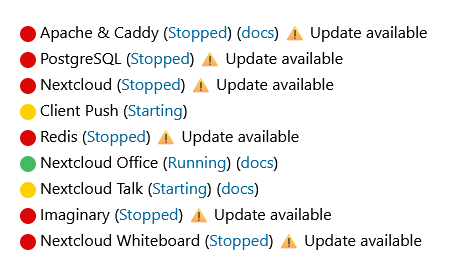
This is the docker ps command:

CONTAINER ID   IMAGE                                               COMMAND                  CREATED          STATUS                    PORTS                                                                                      NAMES
d8767db88877   ghcr.io/nextcloud-releases/aio-notify-push:latest   "/start.sh"              41 minutes ago   Up 40 minutes (healthy)                                                                                              nextcloud-aio-notify-push
5762e37cd8ea   ghcr.io/nextcloud-releases/aio-talk:latest          "/start.sh superviso…"   41 minutes ago   Up 41 minutes (healthy)   0.0.0.0:3478->3478/tcp, 0.0.0.0:3478->3478/udp, [::]:3478->3478/tcp, [::]:3478->3478/udp   nextcloud-aio-talk
8a693bb6cb7a   ghcr.io/nextcloud-releases/aio-collabora:latest     "/start-collabora-on…"   41 minutes ago   Up 41 minutes (healthy)   9980/tcp                                                                                   nextcloud-aio-collabora
4378fec6b543   ghcr.io/nextcloud-releases/all-in-one:latest        "/start.sh"              3 hours ago      Up 3 hours (healthy)      80/tcp, 8443/tcp, 9000/tcp, 127.0.0.1:8084->8080/tcp                                       nextcloud-aio-mastercontainer

This is docker image ls:

IMAGE                                               ID             DISK USAGE   CONTENT SIZE   EXTRA
erikvl87/languagetool:latest                        14e05fa8f8f3        1.2GB          449MB    U
ghcr.io/nextcloud-releases/aio-collabora:latest     fb32e8647b14       2.03GB          534MB    U
ghcr.io/nextcloud-releases/aio-domaincheck:latest   ba1f183fd2bc       23.7MB         6.92MB
ghcr.io/nextcloud-releases/aio-notify-push:latest   c90eea8e86f5       20.8MB         5.47MB    U
ghcr.io/nextcloud-releases/aio-talk:latest          6d78dd1c14ec        278MB         78.6MB    U
ghcr.io/nextcloud-releases/all-in-one:latest        3a094111b88a        388MB          101MB    U
ghcr.io/szaimen/aio-fail2ban:v1                     5bc9617139ea       90.3MB         22.8MB    U
ghcr.io/szaimen/aio-notifications:v1                fd7ce66b0f9f       80.3MB         24.4MB    U

docker logs nextcloud-aio-mastercontainer didn’t change (see above).
@mirkom would you mind tanslating the title of your thread to english?

thanks in advance
J/K

Try this I got it from….

Use at own risk!

Edit the compose file:

nano docker-compose.yml

Change this line:

SKIP_DOMAIN_VALIDATION: "false"

to:

SKIP_DOMAIN_VALIDATION: "true"

So the environment section looks like:

environment:
  APACHE_PORT: "11000"
  APACHE_IP_BINDING: "0.0.0.0"
  APACHE_ADDITIONAL_NETWORK: ""
  SKIP_DOMAIN_VALIDATION: "true"

Then restart AIO:

docker compose down
docker compose up -d

Check logs:

docker logs -f nextcloud-aio-mastercontainer

Then open the AIO admin page again:

https://your-server-ip:8084

or whatever admin URL you were using.

Then click/start/update containers again in the AIO interface.

Important: because you skipped domain validation, make sure nginx is still proxying the actual Nextcloud app to:

http://127.0.0.1:11000

and not to the admin UI port 8084.

Hope that helps..

@smokingwheels Thanks a lot for your answer. I changed the value stopped and restarted the mastercontainer, stopped and restarted the containers in the UI. Unfortunately with the same result:

Trying to fix docker.sock permissions internally...
Creating docker group internally with id 989
Initial startup of Nextcloud All-in-One complete!
You should be able to open the Nextcloud AIO Interface now on port 8080 of this server!
E.g. https://internal.ip.of.this.server:8080
⚠️ Important: do always use an ip-address if you access this port and not a domain as HSTS might block access to it later!

If your server has port 80 and 8443 open and you point a domain to your server, you can get a valid certificate automatically by opening the Nextcloud AIO Interface via:
https://your-domain-that-points-to-this-server.tld:8443
[28-Apr-2026 10:43:56] NOTICE: fpm is running, pid 186
[28-Apr-2026 10:43:56] NOTICE: ready to handle connections

Thanks for testing it. @mirkom

That log only shows the mastercontainer starting — it still doesn’t show why the core containers are not being pulled/created.

Could you please check these two things?

  1. Confirm the variable is really inside the running container:

docker exec nextcloud-aio-mastercontainer printenv | grep SKIP

  1. Check the AIO container state/list from Docker:

docker ps -a | grep nextcloud-aio

Also, try pulling the core image manually to see if Docker itself is failing:

docker pull Package aio-nextcloud · GitHub

If that pull fails, then the issue is Docker/GHCR/network/auth/storage rather than nginx/domain validation.

If it succeeds, the next thing I’d check is whether the mastercontainer has write access to the Docker socket. The compose currently mounts:

/var/run/docker.sock:/var/run/docker.sock:ro

For AIO, I think that should not be read-only. Try:

/var/run/docker.sock:/var/run/docker.sock

Then restart the mastercontainer again.
Hope that helps

I see some parallels with my own AIO setup, especially because this is also a Docker Compose based AIO deployment behind a reverse proxy with APACHE_PORT set manually.

I documented my own Proxmox + Nginx Proxy Manager + Nextcloud AIO deployment here, maybe it can help you compare the setup:

One important thing from my personal experience: the first AIO initialization can easily take 15–25 minutes depending on the connection speed and server performance. Some of the AIO images are quite large, so the initial pull/start phase may look like nothing is happening for a while.

In my own setup I usually prefer using Portainer for this part. It allows me not only to check the logs more comfortably, but also to immediately inspect and manage the containers if needed. During the first deployment the containers do not necessarily appear all at once — some are pulled and started later in the sequence.

So I would first check directly in Portainer whether the missing AIO containers are only still being pulled/created, or whether the process has actually stopped.

If the core AIO containers are not being pulled or created at all, I would also test whether the server can pull the core image manually.

If that fails, the issue is probably not nginx or domain validation, but rather Docker/GHCR/network/storage access.

Since this is a reverse proxy setup, I would also compare the compose file against the official AIO reverse proxy documentation and make sure APACHE_PORT and APACHE_IP_BINDING match the way nginx connects to the Apache container.

@smokingwheels Thanks again for spending your time.

  1. The env-Variable is true.
  2. docker ps…
8408baf1a6f5   ghcr.io/nextcloud-releases/aio-notify-push:latest   "/start.sh"              11 minutes ago   Up 11 minutes (healthy)                                                                                              nextcloud-aio-notify-push
dce7e5e5e9cd   ghcr.io/nextcloud-releases/aio-talk:latest          "/start.sh superviso…"   11 minutes ago   Up 11 minutes (healthy)   0.0.0.0:3478->3478/tcp, 0.0.0.0:3478->3478/udp, [::]:3478->3478/tcp, [::]:3478->3478/udp   nextcloud-aio-talk
cc234fac153a   ghcr.io/nextcloud-releases/aio-collabora:latest     "/start-collabora-on…"   11 minutes ago   Up 11 minutes (healthy)   9980/tcp                                                                                   nextcloud-aio-collabora
b79d79c33320   ghcr.io/nextcloud-releases/all-in-one:latest        "/start.sh"              12 minutes ago   Up 12 minutes (healthy)   80/tcp, 8443/tcp, 9000/tcp, 127.0.0.1:8084->8080/tcp                                       nextcloud-aio-mastercontainer
  1. Pulling the image with
docker pull ghcr.io/nextcloud-releases/aio-nextcloud:latest

succeeded.

  1. Looking at this doc suggests, that the mastercontainer should be started with the :ro flag. Removing the flag doesn’t change anything. The mastercontainer log doesn’t show any insights (see original post).

@mirkom

Good catch — yes, you are right. For Nextcloud AIO the docker.sock mount is expected to be read-only in the official examples, so I would leave:

/var/run/docker.sock:/var/run/docker.sock:ro

Since SKIP_DOMAIN_VALIDATION is true and the aio-nextcloud image pulls manually, this is probably not GHCR/network access.

The interesting part is that notify-push, talk and collabora are now running, but I still don’t see:

nextcloud-aio-nextcloud
nextcloud-aio-database
nextcloud-aio-redis
nextcloud-aio-apache

Could you check:

docker ps -a | grep nextcloud-aio

and also in the AIO web UI whether any of those core containers are listed as stopped/failed?

If they exist but stopped, then please post logs for the failed ones, for example:

docker logs nextcloud-aio-database
docker logs nextcloud-aio-redis
docker logs nextcloud-aio-apache
docker logs nextcloud-aio-nextcloud

Hope that helps.

@smokingwheels

docker ps -a | grep nextcloud-aio

shows only these 4 images (as shown above):

ghcr.io/nextcloud-releases/aio-notify-push:latest 
ghcr.io/nextcloud-releases/aio-talk:latest        
ghcr.io/nextcloud-releases/aio-collabora:latest   
ghcr.io/nextcloud-releases/all-in-one:latest      

Since -a lists stopped containers, too, missing them in the docker ps -a list means, there are no images built for aio-nextcloud, etc. So I can’t get any logs from them.

Is there a verbose mode setting I can turn on for the mastercontainer?

@mirkom
Short answer: no real “verbose mode” toggle exists for the AIO mastercontainer.

@vawaver

the first AIO initialization can easily take 15–25 minutes

pulling the aio-nextcloud image manually lasted about 30 seconds. I waited a while after restarting the containers with no success. So I assume, that the initialization process has been stopped.

If the core AIO containers are not being pulled or created at all, I would also test whether the server can pull the core image manually.

I proved that manually pulling the image works.

I would also compare the compose file against the official…

I checked it several times, but if you want to recheck, you can find the docker-compose.yml and the nginx config file in my original post. The most interesting bits may be:

    environment:
      APACHE_PORT: "11000"

and

proxy_pass http://127.0.0.1:11000$request_uri;

Hi, did you already check the frontend browser console logs? Maybe this shows some hints?

@szaimen Thanks for your answer. But the frontend shows a 502 from nginx. The container which should expose the port 11000 simply doesn’t exist, so the 502 is a logical consequence.

No, I mean the browser logs from the AIO interface. Maybe there are some clues why the other containers are not started correctly

@szaimen Sorry for the misunderstanding. The browser log for the admin UI doesn’t show anything noticable. The network protocol shows status 200 for all requests.

Do you run a vpn? Maybe that blocks some connections?

@szaimen No VPN. The server is directly in the web, with nginx as reverse proxy. Nginx forwards a subdomain for the admin UI via Port 8084 to port 8080 in the mastercontainer (127.0.0.1:8084:8080). The subdomain for nextcloud is forwarded to http://127.0.0.1:11000$request_uri.

The mastercontainer admin UI works as expected, but there is no container listening to port 11000.

Hi,

I had the exact same issue on my Nextcloud AIO instance (v12.7.0 → v12.9.2). After updating the mastercontainer, clicking “Start and update containers” did absolutely nothing. No logs, no pull, no container creation. Some secondary containers (Talk, OnlyOffice) would start, but the core ones (Apache/Caddy, PostgreSQL, Nextcloud, Redis) stayed stuck on “Stopped” with “Update available”.

The root cause in my case: the AIO management interface was accessed through a reverse proxy.

The reverse proxy was silently blocking or interfering with the POST requests sent by the “Start and update containers” button to the mastercontainer API. No errors appeared in the mastercontainer logs — it simply never received the request.

Solution:

  1. Disable or remove your nginx reverse proxy configuration for the AIO admin interface
  2. Access the AIO interface directly via https://<server-ip>:8080
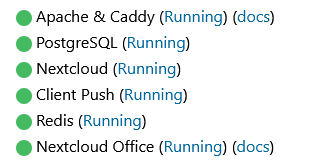
  3. Click “Start and update containers” from there — it worked immediately for me
  4. Once everything is up and running, you can re-enable your nginx config

Since you’re also running behind nginx, I’m pretty sure this is the same issue. Give it a try!

Hope this helps !

@mayari You saved my day! Thanks a lot.

I wonder what the reason for this behavior is. I had to stop another service on the machine using the port 8080 to make this possible.

I can’t imagine why the developers wouldn’t implement this so that the POSTs work with a reverse proxy. The GET requests also work.

btw: main dev is reading along, twinkle