The Basics
-
Nextcloud Server version:
32.0 -
Operating system and version (e.g., Ubuntu 24.04):
Linux Mint 22.2 (Zara)
-
Web server and version (e.g, Apache 2.4.25):
NextCloud AIO Default
-
Reverse proxy and version _(e.g. nginx 1.27.2)
I'm using a web-facing setup; I didn't add any reverse proxy (like Caddy) or Local DNS tool.
-
PHP version (e.g, 8.3):
8.3.25 (installed via NextCloud AIO Version: 8.3.25 Memory limit: 512 MB Max execution time: 3600 Upload max size: 16 GB -
Is this the first time you’ve seen this error? (Yes / No):
Yes
-
When did this problem seem to first start?
A few days ago (I hadn't tried using external storage before then, though
-
Installation method (e.g. AlO, NCP, Bare Metal/Archive, etc.)
AIO
-
Are you using CloudfIare, mod_security, or similar?
No
Summary of the issue you are facing:
When I attempt to upload even very small files to an external storage folder, I get the following error messages: (1) Unknown error during upload and (2) Operation is blocked by access control (see screenshot below). It’s worth noting that I have not installed the File Access Control app, so that app can’t be the cause of these errors.
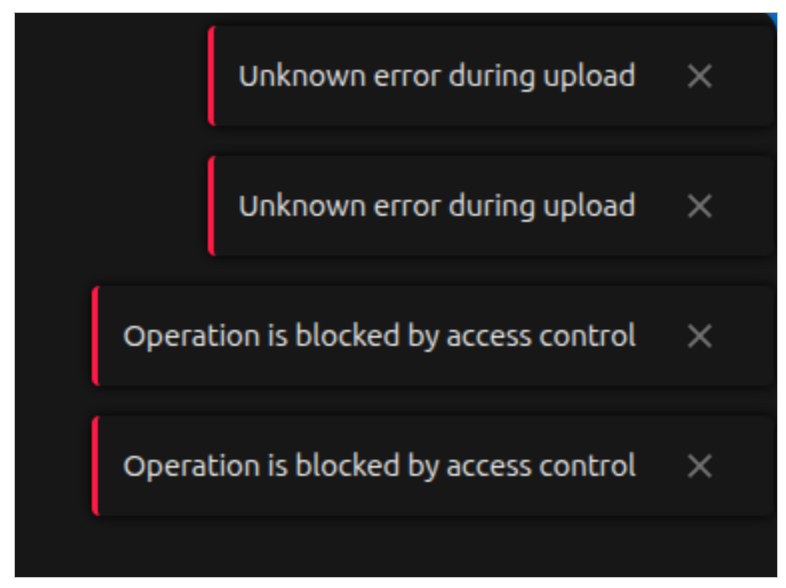
I’m also not able to use NextCloud to create new files within this folder. In addition, the sample files that I created within the folder aren’t visible.
I got similar error messages with both an external hard drive and an external SSD, so I don’t think the issue is with the drive itself.
These issues only occur with my external storage; I’m able to upload, create, and modify files within my main storage just fine.
Steps to replicate it:
-
When I first launched NextCloud AIO, I included the following line within my
docker runcommand in order to make my media folder accessible:--env NEXTCLOUD_MOUNT="/media/" \ -
I mounted my drive; next, within the Disks utility, I changed its mount point to
/media/ExtSSD1. (I took this step because the default storage location, i.e./media/myusername/ExtSSD1, appeared to be inaccessible to NextCloud–probably because NextCloud didn’t have access to/media/myusername.) -
I remounted the drive and confirmed that it was now showing up within
/media/ExtSSD1. -
Using this guide as a reference, I ran the following two commands to update the access settings for this folder:
sudo chown -R 33:0 /media/ExtSSD1
sudo chmod -R 750 /media/ExtSSD1
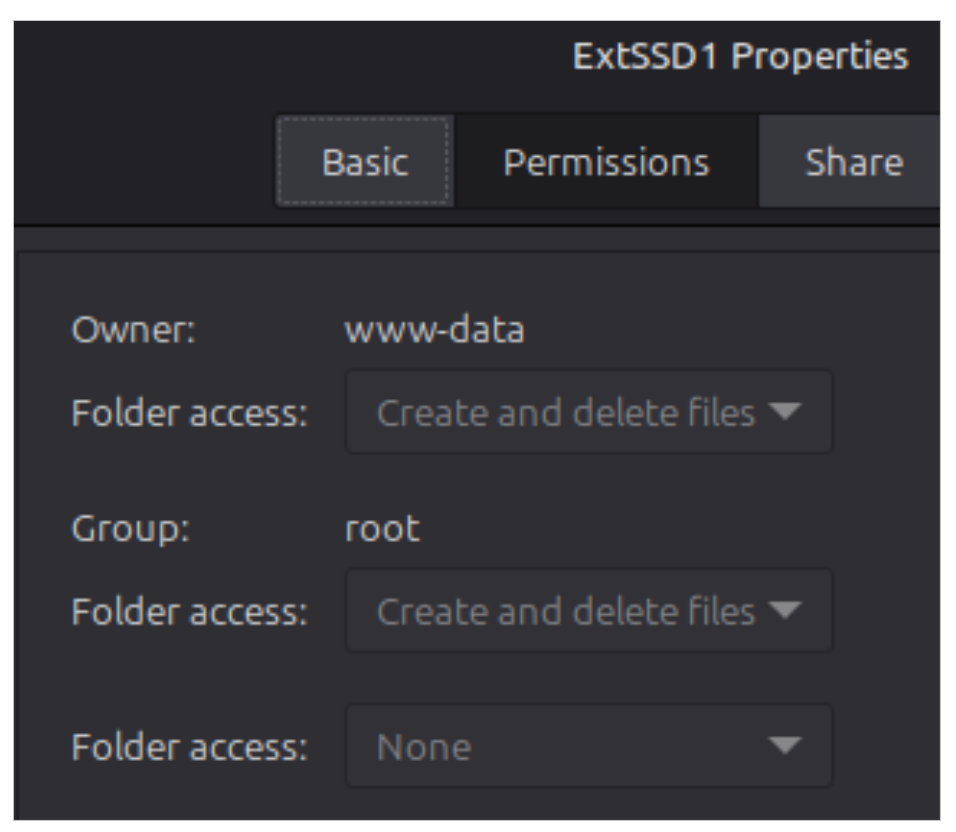
I then tried tweaking these settings further within Linux Mint, but I don’t think that made a difference. Here’s what my Permissions settings look like for this folder:
Note that both www-data and root are able to create and delete files within this folder.
In addition, running
sudo -u www-data ls -l /media/ExtSSD1within my Linux Mint terminal (as suggested by @tflidd in this post) allows me to see the contents of this folder–so I don’t think the permissions issue is on Linux Mint’s side. -
I enabled the External Storage app; then, within my administrator account, I created a new external storage entry. I chose EXTSSD for the folder name, ‘Local’ for the external storage type, ‘None’ for the authentication method, and
/media/ExtSSD1for the configuration setting. I also gave access rights to my administrator account and my personal user account. I saw a green checkmark to the left of the entry after I completed these steps.
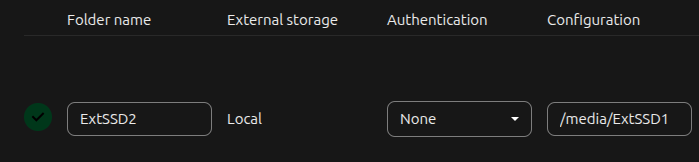
- I then navigated to ‘External Storage’ within the NextCloud UI. I attempted to (1) view the handful of files/folders that were already in this folder; (2) create a new file within NextCloud; and (3) upload an existing file to this folder. All of these attempts failed.
Log entries
Here’s the entry I get when I attempt to upload a file:
[no app in context] Error: Could not create path "/admin/files/ExtSSD/test_doc_17.docx"
	POST /ocs/v2.php/apps/files/api/v1/templates/create
	from [my public IP address] by admin at Oct 12, 2025, 10:39:57 PM