Support intro
Sorry to hear you’re facing problems. 
The community help forum (help.nextcloud.com) is for home and non-enterprise users. Support is provided by other community members on a best effort / “as available” basis. All of those responding are volunteering their time to help you.
If you’re using Nextcloud in a business/critical setting, paid and SLA-based support services can be accessed via portal.nextcloud.com where Nextcloud engineers can help ensure your business keeps running smoothly.
Getting help
In order to help you as efficiently (and quickly!) as possible, please fill in as much of the below requested information as you can.
Before clicking submit: Please check if your query is already addressed via the following resources:
- Official documentation (searchable and regularly updated)
- How to topics and FAQs
- Forum search
(Utilizing these existing resources is typically faster. It also helps reduce the load on our generous volunteers while elevating the signal to noise ratio of the forums otherwise arising from the same queries being posted repeatedly).
Some or all of the below information will be requested if it isn’t supplied; for fastest response please provide as much as you can. 
The Basics
- Nextcloud Server version (e.g., 29.x.x):
- 32.0.5.0
- Operating system and version (e.g., Ubuntu 24.04):
UGOS 1.12.1
- Web server and version (e.g, Apache 2.4.25):
replace me
- Reverse proxy and version _(e.g. nginx 1.27.2)
replace me
- PHP version (e.g, 8.3):
replace me
- Is this the first time you’ve seen this error? (Yes / No):
Yes
- When did this problem seem to first start?
First installation
- Installation method (e.g. AlO, NCP, Bare Metal/Archive, etc.)
Docker
- Are you using CloudfIare, mod_security, or similar? (Yes / No)
No
Summary of the issue you are facing:
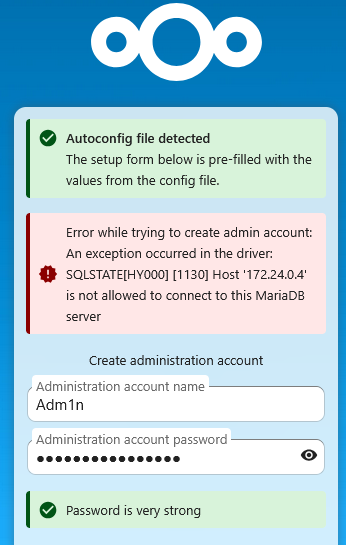
After having successfully installed and deployed the Nextcloudcontainer via Docker on a UGREEN NAS DXP4800Pro, when trying to create the admin account during the first log-in, I get the following error:
“Error while trying to create admin account: An exception occurred in the driver: SQLSTATE[HY000] [1130] Host ‘172.24.0.4’ is not allowed to connect to this MariaDB server”
Steps to replicate it (hint: details matter!):
Log entries
Nextcloud
Please provide the log entries from your Nextcloud log that are generated during the time of problem (via the Copy raw option from Administration settings->Logging screen or from your nextcloud.log located in your data directory). Feel free to use a pastebin/gist service if necessary.
nextcloud_db     | 2026-01-19 12:15:11 7 [Warning] Aborted connection 7 to db: 'unconnected' user: 'unauthenticated' host: '172.24.0.4' (This connection closed normally without authentication)
nextcloud_db     | 2026-01-19 12:52:26 8 [Warning] Aborted connection 8 to db: 'unconnected' user: 'unauthenticated' host: '172.24.0.4' (This connection closed normally without authentication)
Web Browser
If the problem is related to the Web interface, open your browser inspector Console and Network tabs while refreshing (reloading) and reproducing the problem. Provide any relevant output/errors here that appear.
PASTE
Web server / Reverse Proxy
The output of your Apache/nginx/system log in /var/log/____:
PASTE HERE
Configuration
Nextcloud
The output of occ config:list system or similar is best, but, if not possible, the contents of your config.php file from /path/to/nextcloud is fine (make sure to remove any identifiable information!):
<?php
$CONFIG = array (
  'htaccess.RewriteBase' => '/',
  'memcache.local' => '\\OC\\Memcache\\APCu',
  'apps_paths' =>
  array (
    0 =>
    array (
      'path' => '/var/www/html/apps',
      'url' => '/apps',
      'writable' => false,
    ),
    1 =>
    array (
      'path' => '/var/www/html/custom_apps',
      'url' => '/custom_apps',
      'writable' => true,
    ),
  ),
  'upgrade.disable-web' => true,
  'instanceid' => 'EDITED',
  'passwordsalt' => 'EDITED',
  'secret' => 'EDITED',
  'trusted_domains' =>
  array (
    0 => '192.168.178.xx:8080',
  ),
  'datadirectory' => '/var/www/html/data',
  'dbtype' => 'mysql',
  'version' => '32.0.5.0',
  'overwrite.cli.url' => 'http://192.168.178.xx:8080',
  'dbname' => 'nextcloud',
  'dbhost' => 'db',
  'dbtableprefix' => 'oc_',
);
Apps
The output of occ app:list (if possible).
Tips for increasing the likelihood of a response
- Use the
preformatted textformatting option in the editor for all log entries and configuration output. - If screenshots are useful, feel free to include them.
- If possible, also include key error output in text form so it can be searched for.
- Try to edit log output only minimally (if at all) so that it can be ran through analyzers / formatters by those trying to help you.