Hi,
I can’t say whether it has to be as says.
I’ve never seen it that way, and as I understand it, it doesn’t make sense. Because the exApps run under the web address HTTPS://YOUR-DOMAIN/exApps/. And in Proxy Manager, it is specified that this address and everything that comes after it is forwarded to your Docker server and the specified port. And this port refers to your appapi-harp container in the Docker server. If you specify the value proxy_pass http://YOUR-INTERNAL-IP:8780/exApps; here in Nginx, it won’t work – because you/the system is looking for a Docker container and it doesn’t run in a directory. That’s why I say that this can’t work. If I am wrong, please correct me.
I will now list everything again exactly as it works for me. If you have the same settings, there should be no problems.
Installation Nextcloud with App AppAPI – that’s clear. If Nextcloud AIO is used, there is of course no need to install Docker.
Docker installation
Docker installation with all components – preferably the latest version:
sudo curl -fsSL https://get.docker.com | sh
if required or desired
sudo usermod -aG docker $USER
Docker - Fix API version problem
Due to the current problems with Docker
create the daemon.json file
sudo nano /etc/docker/daemon.json
with the following content
{
"min-api-version": "1.24"
}
Create container app API-HaRP
Create, retrieve, and start Docker containers using the Docker Run command
! NC_INSTANCE_URL is only HTTP and that is correct !
sudo docker run \
-e HP_SHARED_KEY="PASSWORD" \
-e NC_INSTANCE_URL="HTTP:/YOUR-DOMAIN" \
-e HP_EXAPPS_ADDRESS="YOUR-INTERNAL-IP:8780" \
-v /var/run/docker.sock:/var/run/docker.sock \
-v pwd/certs:/certs \
--name appapi-harp -h appapi-harp \
--restart unless-stopped \
--network host \
-d ghcr.io/nextcloud/nextcloud-appapi-harp:release
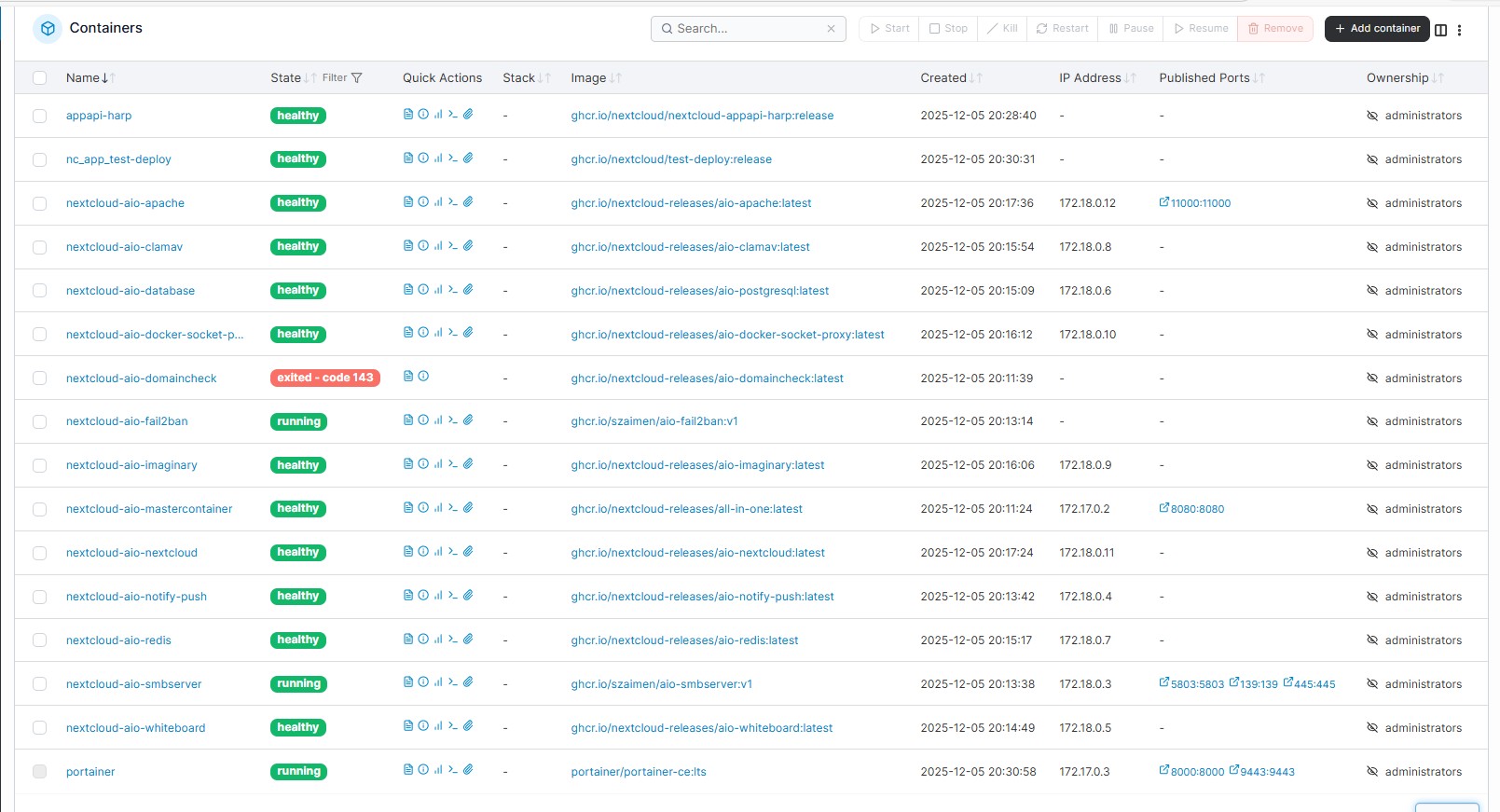
This results in the following container in Portainer, for example:

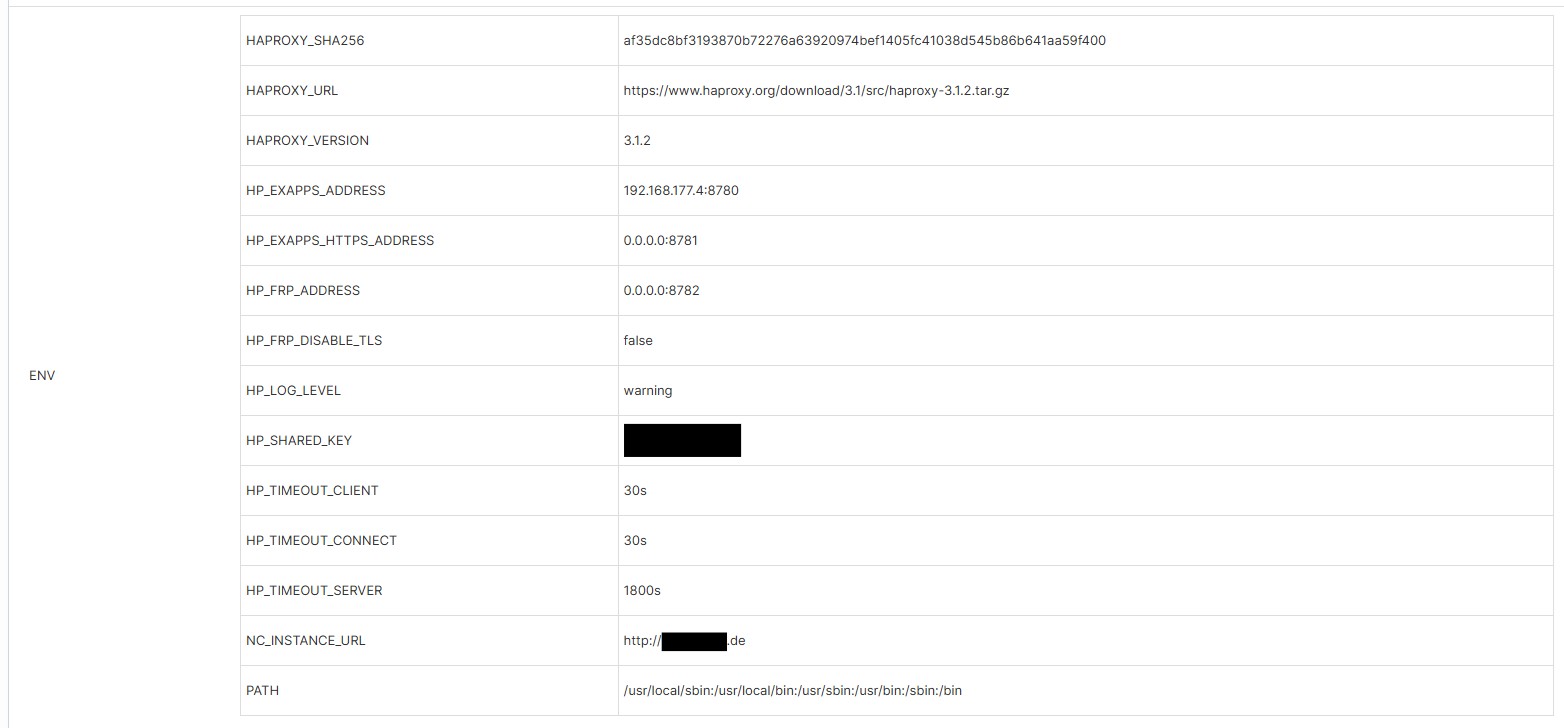
NGINX Proxy Manager configuration
If used, add the following configuration in NGINX Proxy Manager under Advanced: location /exapps/ {
proxy_pass ``http://YOUR-INTERNAL-IP:8780``;
proxy_set_header Host $host;proxy_set_header X-Real-IP $remote_addr;
proxy_set_header X-Forwarded-For $proxy_add_x_forwarded_for;
proxy_set_header X-Forwarded-Proto $scheme;
}
Also, activate or deactivate the following items in the web server configuration in NGINX:
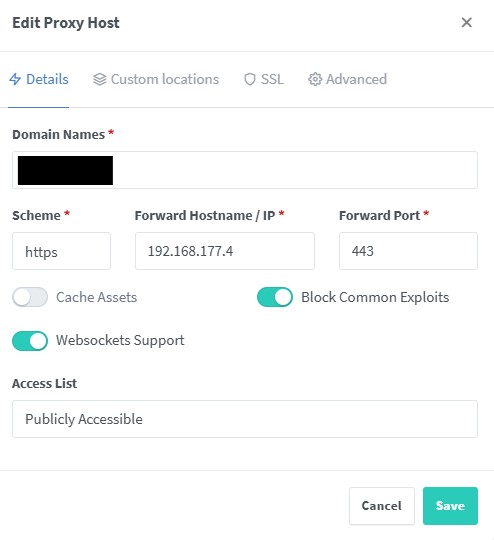
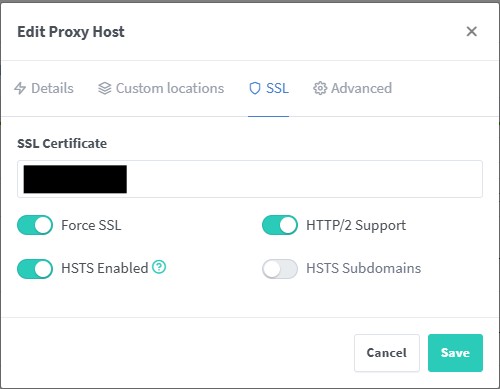
Nextcloud AppAPI - Daemon configuration
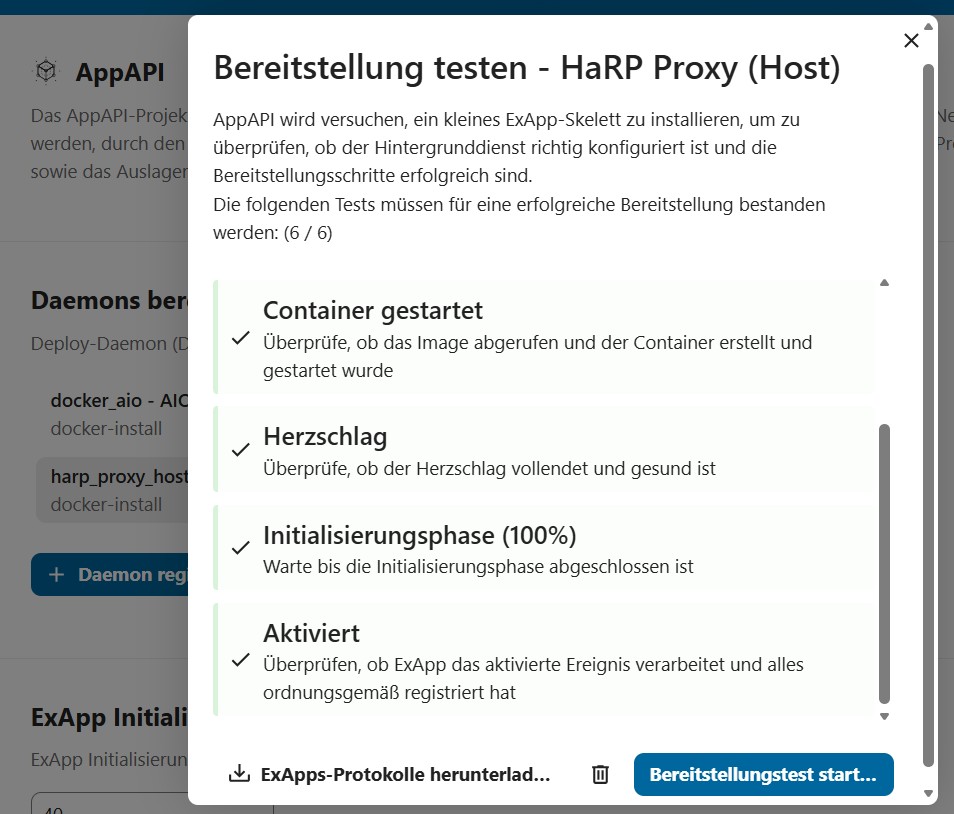
In Nextcloud, go to the administration area on the left, click on AppAPI, then on the + Register Daemon button.
Apply the following configuration.
Important points are:
HaRP host: YOUR-INTERNAL-IP:8780
Shared HaRP key: YOUR HP_SHARED_KEY
Nextcloud URL: HTTPS://YOUR-DOMAIN/index.php
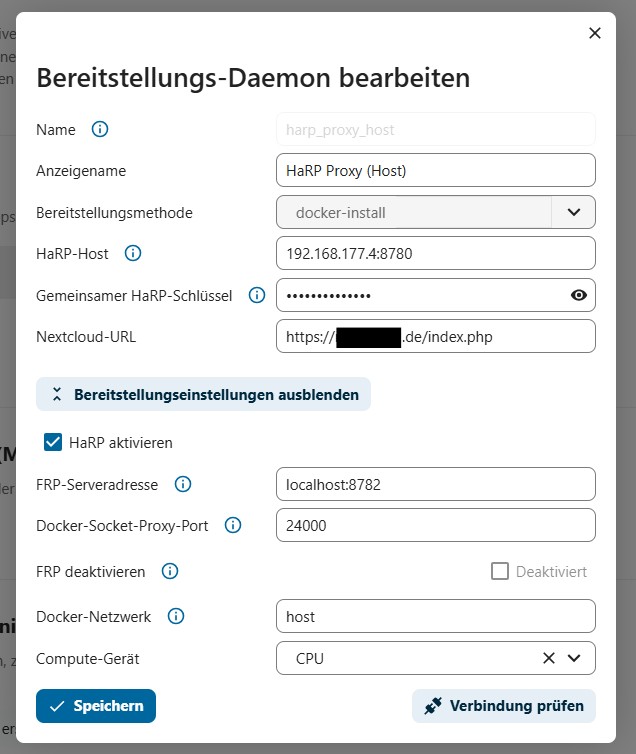
I have already set up several servers with Nextcloud and they are all running smoothly.
The specified ports can of course be changed as desired, but please always adjust all commands accordingly.
If you still encounter problems, please let us know.
Deutsche Version
ob das so sein muss wie sagt - kann ich nicht sagen.
So habe ich es noch nie gesehen und nach meinem Verständnis macht es auch keinen Sinn. Denn die exApps laufen unter der Web-Adresse HTTPS://YOUR-DOMAIN/exApps/. Und im Proxy Manager wird festgelegt, dass diese Adresse und alles was dahinter kommt auf deinen Docker-Server und dem angegebenen Port weitergeleitet wird. Und dieser Port verweist im Docker-Server auf deinen Container appapi-harp. Wenn man hier im Nginx den Wert proxy_pass http://YOUR-INTERNAL-IP:8780/exApps; angibt wird es nicht funktionieren - denn du/das System sucht ja einen Docker-Container und dieser läuft nicht in einem Verzeichnis. Daher sage ich, dass dies nicht funktionieren kann. Sollte ich falsch liegen bitte ich um Berichtigung.
Ich liste jetzt einfach nochmal komplett alles auf wie es bei mir läuft. Wenn es bei dir auch genauso eingestellt ist sollte es keinerlei Probleme geben.
Installation Nextcloud mit App AppAPI - das ist klar. Wenn Nextcloud AIO genutzt wird entfällt natürlich die Installation von Docker.
Docker Installation
Docker Installation mit allen Komponenten - am besten auch aktuellste Version:
sudo curl -fsSL https://get.docker.com | sh
falls benötigt oder gewünscht
sudo usermod -aG docker $USER
Docker - API-Versionsproblem beheben
Aufgrund der aktuellen Probleme mit Docker - Erstellen der daemon.json - Datei
sudo nano /etc/docker/daemon.json
mit folgendem Inhalt
{
"min-api-version": "1.24"
}
Container AppAPI-HaRP erstellen
Docker Container per Docker Run Befehl erstellen, abrufen, starten
! NC_INSTANCE_URL is only HTTP an that is right !
sudo docker run \
-e HP_SHARED_KEY="PASSWORD" \
-e NC_INSTANCE_URL="HTTP://YOUR-DOMAIN" \
-e HP_EXAPPS_ADDRESS="YOUR-INTERNAL-IP:8780" \
-v /var/run/docker.sock:/var/run/docker.sock \
-v `pwd`/certs:/certs \
--name appapi-harp -h appapi-harp \
--restart unless-stopped \
--network host \
-d ghcr.io/nextcloud/nextcloud-appapi-harp:release
Dies ergibt z.B. bei Portainer folgenden Container:
NGINX Proxy Manager Konfiguration
Wenn genutzt - folgende Konfiguration im NGINX Proxy Manager im Punkt Advanced einfügen
location /exapps/ {
proxy_pass http://YOUR-INTERNAL-IP:8780;
proxy_set_header Host $host;
proxy_set_header X-Real-IP $remote_addr;
proxy_set_header X-Forwarded-For $proxy_add_x_forwarded_for;
proxy_set_header X-Forwarded-Proto $scheme;
}
Außerdem in der Konfiguration des Webservers im NGINX folgende Punkte entsprechend aktivieren bzw. deaktivieren:
Nextcloud AppAPI - Daemon Konfiguration
In Nextcloud im Administrationsbereich links auf den Punkt AppAPI, dann auf die Schaltfläche + Daemon registrieren
Folgende Konfiguration anwenden
Wichtige Punkte sind:
HaRP-Host : YOUR-INTERNAL-IP:8780
Gemeinsamer HaRP-Schlüssel : YOUR HP_SHARED_KEY
Nextcloud-URL : HTTPS://YOUR-DOMAIN/index.php
So habe ich bereits mehrfach Server mit Nextcloud aufgesetzt und alle laufen einwandfrei.
Die angegebenen PORTs können natürlich beliebig ausgewechselt werden, dann jedoch bitte immer alle Befehle anpassen.
Sollte es doch noch Probleme geben, dann einfach melden.