How to install Euro-Office in Nextcloud

Originally published at: How to install Euro-Office in Nextcloud

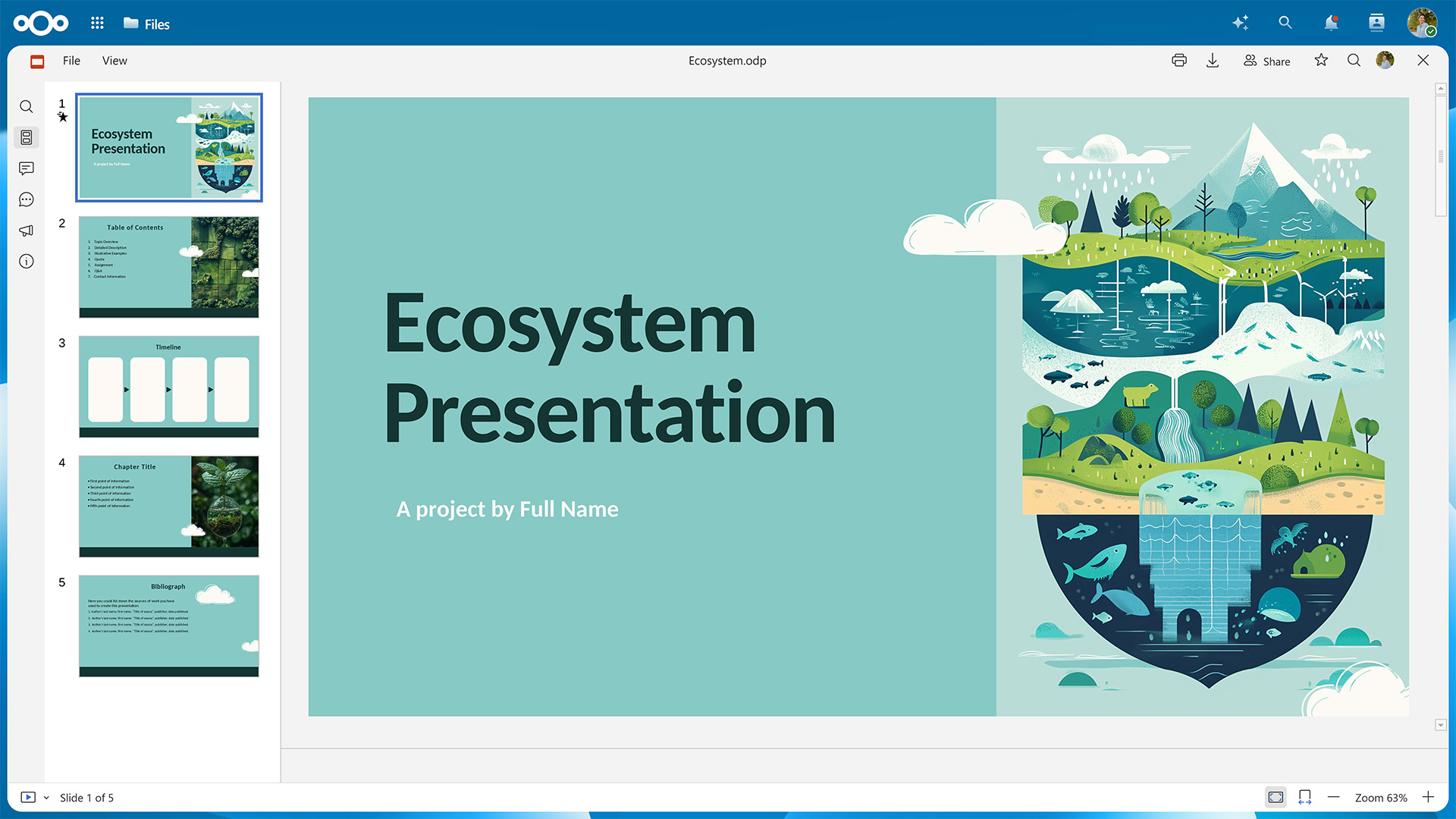
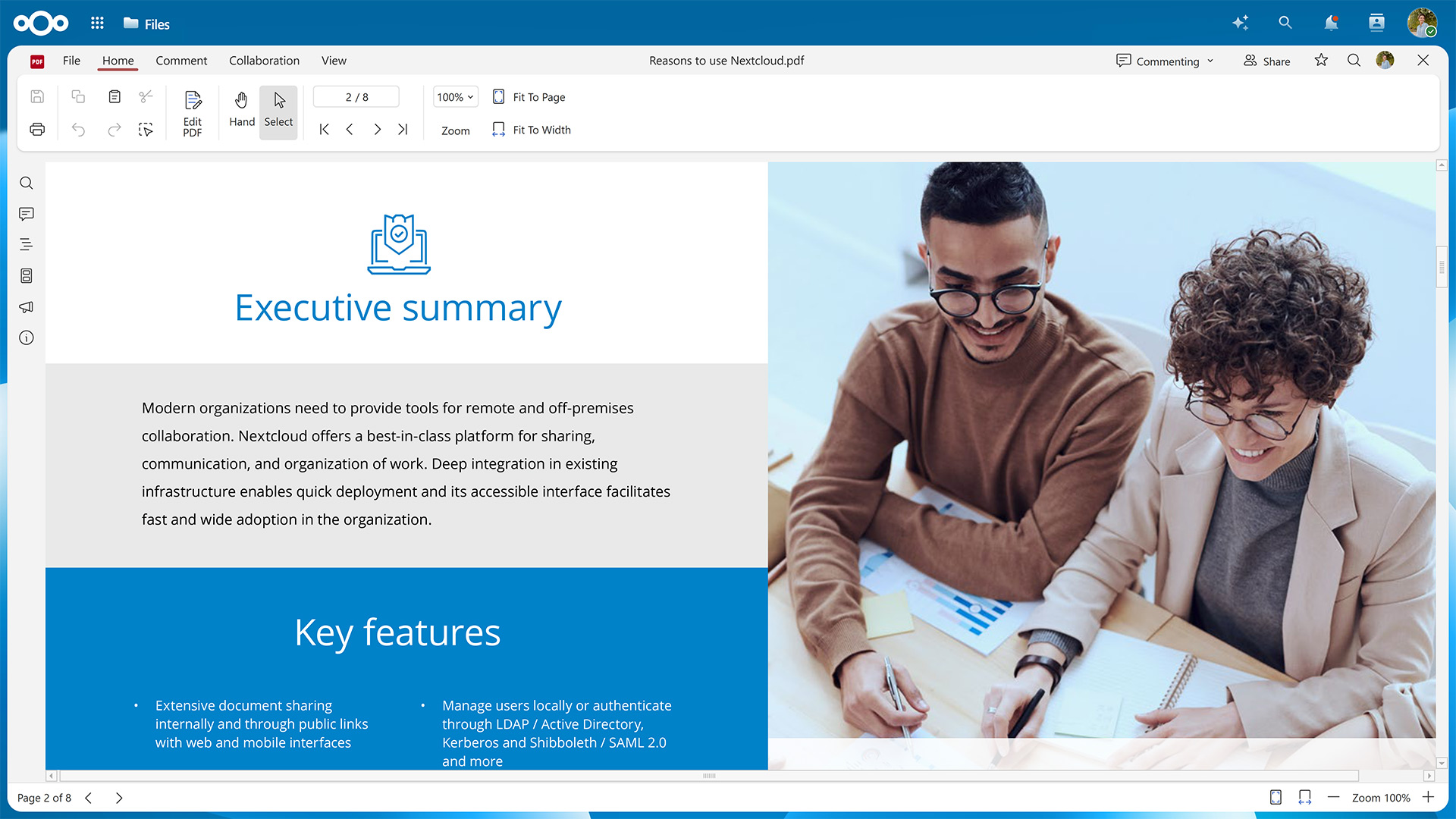
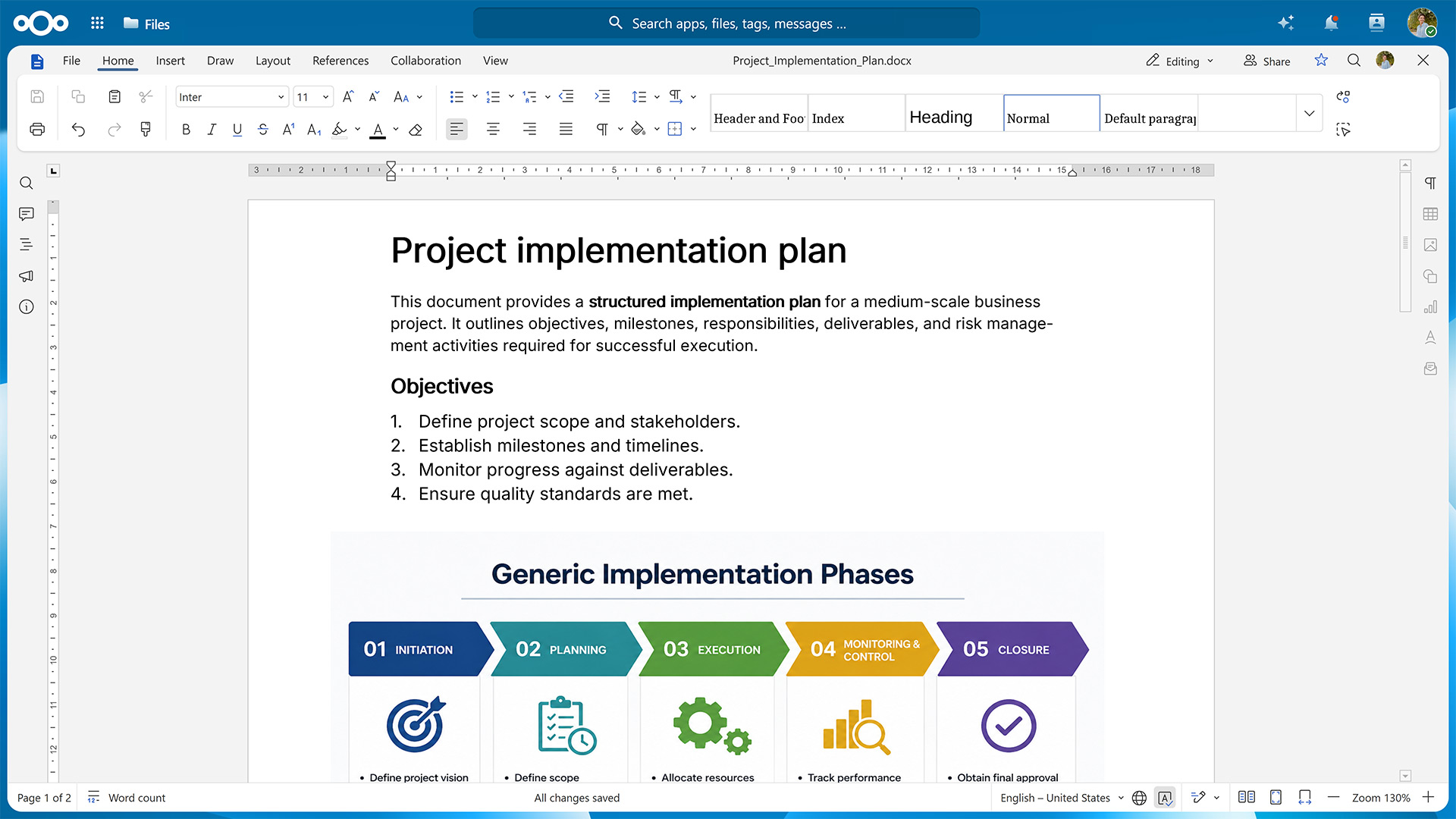
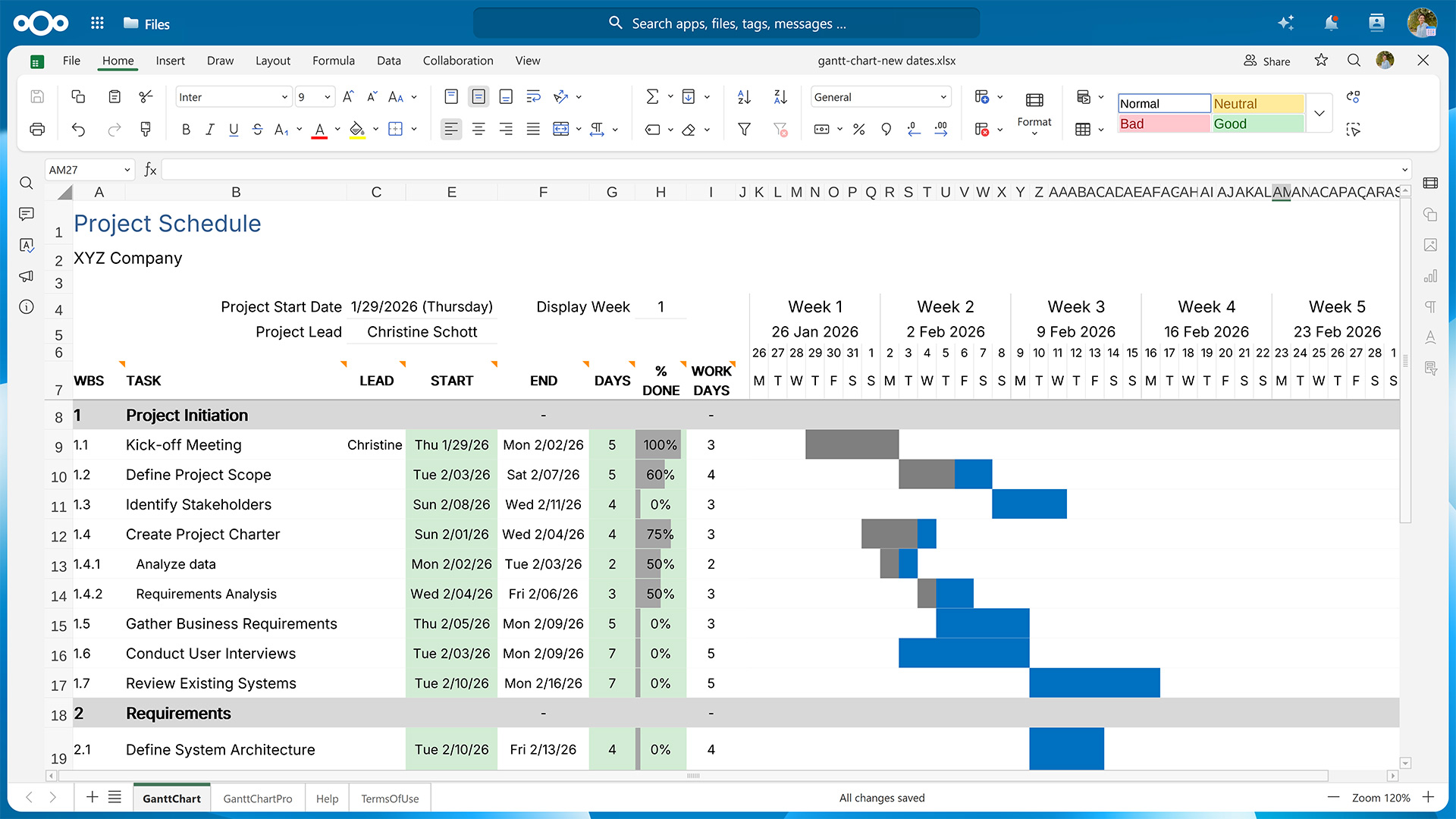
With the Nextcloud Hub 26 Spring Release, we’ve introduced Euro-Office as an office suite option with web-based editors for documents, spreadsheets, presentations, and PDFs. It features high-fidelity rendering that preserves the layout and formatting of your files.
In this guide, we’ll show you how to activate Euro-Office for your Nextcloud instance.

First, you’ll need to set up the Euro-Office Document Server, where the rendering and editing happens.

Then, you’ll have to make sure your Nextcloud can communicate with the server by installing the Nextcloud Office connector app.

Fresh installations using the latest version of the Nextcloud All-in-One Docker image let you choose between Euro-Office and Collabora Online during the initial configuration.

Step 1: Set up the Euro-Office Document Server

You can install the Euro-Office Document Server package on Ubuntu or Debian. If you’re using a different Linux distribution, you can also install it via Docker. All installation methods require amd64 or arm64 architecture.

➡️ Jump to instructions for Ubuntu & Debian

➡️ Jump to instructions for Docker

The minimum requirements for running the Euro-Office Document Server are 4 GB RAM (8 GB recommended for multi-user deployments) and 10 GB free disk space. In production, make sure the Euro-Office Document Server and your Nextcloud can reach each other over HTTPS.

The Document Server does not need to run on the same host as Nextcloud. A reverse proxy (nginx or Apache) in front of the Document Server is required for production deployments to expose it over HTTPS.

Variant A: Install the Euro-Office Document Server on Ubuntu or Debian

The following instructions have been tested on Ubuntu 24.04 LTS (Noble) and Debian 12 (Bookworm). Please refer to the Nextcloud Office documentation pages for Ubuntu and Debian to check whether anything has changed for newer versions.

Debian only: Enable the contrib component

Euro-Office requires the ttf-mscorefonts-installer package, which lives in Debian’s contrib component and isn’t enabled by default. Edit /etc/apt/sources.list and add contrib to each line:

deb http://deb.debian.org/debian bookworm main contrib
deb http://deb.debian.org/debian bookworm-updates main contrib
deb http://deb.debian.org/debian-security/ bookworm-security main contrib

Then update the package index:

sudo apt-get update

1. Install the required packages

Euro-Office depends on PostgreSQL, Redis, RabbitMQ, nginx, and Supervisor. Install them if you haven’t already.

sudo apt-get update
sudo apt-get install -y postgresql redis-server rabbitmq-server nginx supervisor

2. Create the PostgreSQL user and database

There’s a post-install script that connects to PostgreSQL during installation, so create the PostgreSQL user and database first.

sudo -u postgres psql -c "CREATE USER ds WITH PASSWORD 'ds';"
sudo -u postgres psql -c "CREATE DATABASE ds OWNER ds;"

3. Preconfigure the connection details

The package installer configures itself non-interactively using debconf. Pre-seed the database connection details so the post-install script can proceed without a prompt.

echo "ds ds/db-type select postgres
ds ds/db-host string localhost
ds ds/db-port string 5432
ds ds/db-user string ds
ds ds/db-pwd password ds
ds ds/db-name string ds" | sudo debconf-set-selections

4. Download the Euro-Office Document Server package

Get the latest Euro-Office Document Server version from the GitHub releases page.

# Replace <version> and <arch> with your values, e.g. 9.3.1 and amd64 or arm64
wget "https://github.com/Euro-Office/DocumentServer/releases/download/v<version>/euro-office-documentserver_<version>_<arch>.deb" \
  -O /tmp/euro-office-documentserver.deb

5. Install the Euro-Office Document Server package

Now you can install the Euro-Office Document Server.

sudo apt-get install -y /tmp/euro-office-documentserver.deb

The installer generates fonts, WOPI keys, and JS caches, so this can take a minute or two.

When the installation has finished, it will output:

Congratulations, the Euro-Office DocumentServer has been installed successfully!

You can verify that all services are running with the following command:

systemctl is-active ds-docservice ds-converter ds-metrics nginx

The command should then display the following output:

active
active
active
active

And when running a health check …

curl http://localhost/healthcheck

… the output should be true.

Variant B: Install the Euro-Office Document Server via Docker

The quickest way to run the Euro-Office Document Server is via the official Docker image. You’ll need Docker Engine 20.10 or later and 5 GB disk space for the image. For more details, please refer to the “Installing via Docker” page in the Nextcloud Office documentation.

Start the Euro-Office Document Server with the following command, replacing your-secret with a strong random string.

The JWT secret is shared between the Euro-Office Document Server and the Nextcloud Office connector app, so both must use the same value.

docker run -d \
  --name euro-office \
  --restart=unless-stopped \
  -p 80:80 \
  -e JWT_ENABLED=true \
  -e JWT_SECRET=your-secret \
  -v /path/to/data:/var/lib/euro-office/documentserver \
  -v /path/to/logs:/var/log/euro-office/documentserver \
  -v /path/to/config:/etc/euro-office/documentserver \
  ghcr.io/euro-office/documentserver:latest

The three lines starting with -v ensure your data, logs, and config aren’t lost when the container is removed. You can leave them out if necessary.

Once the container is up, you can run a health check with the following command:

curl http://localhost/healthcheck

The command should then output true.

Step 2: Install the Nextcloud Office connector app

Now that you’ve installed the Euro-Office Document Server, you need to establish a connection from your Nextcloud.

To do this, go to the Apps section in your Nextcloud user interface, look for the Nextcloud Office connector app, and download and enable it.

Alternatively, you can use the occ command to install the app:

sudo -E -u www-data php occ app:install eurooffice

Depending on your setup and which installation method you used, you might need to configure the connection. Please refer to “Server settings” on the “Configuration” page in the Nextcloud office documentation for further details.

Conclusion

With both the Document Server and the connector app set up, you’re ready to start working in your new office suite.

Should you run into any problems, we’re happy to help. Just open a new topic on the Nextcloud forums.

New to Nextcloud? You can create a free account through a provider or set up your own server, e.g., with the Nextcloud All-in-One Docker image on Linux or Windows.

For bigger organizations, Nextcloud Enterprise scales from hundreds to millions of users, includes direct support from the Nextcloud engineering team, and gives you a say in shaping the roadmap for the tools you use daily. Start an instant trial for a free 1-hour test drive or get in touch for a quote tailored to your organization.

Nextcloud Hub 26 Spring: Built together, designed for the future

Discover our latest release! Watch the launch of Nextcloud Hub 26 Spring on your favourite platform and read the release blog.

Learn more

Thank you a lot for the article. Let me add some tips or advice:

  1. First of all, the Nextcloud Connector app for EO is available only for the NC 33+ version, not earlier.
  2. Secondly, the JWT_SECRET should be very loooooong phrase, either you will have an error.
  3. In the docker configuration you see only the port 80 to be attached. So, there will be no SSL routine used. You can face with errors, especially if your NC is accessible via https.
  4. I also suggest to disable ds-example via docker container.

Please, correct me, if wrong.

Correct, but I don’t think that’s much of an issue, since Nextcloud 32 will reach EOL soon anyway, and 33 is already stable enough for most use cases. Those who require longer support periods, e.g. in enterprise environments, should probably get in touch with Nextcloud GmbH.

Yes, and ideally it should be something randomly generated, for example with OpenSSL:

openssl rand -hex 32

You can change that to any port you like.

I think the general idea behind this Docker configuration is that you’re using a reverse proxy in front of it to handle HTTPS. So yes, exposing it directly on port 80 is probably rarely what you want. It really depends on your particular Nextcloud setup, your infrastructure, and whether you’re running the document server on a dedicated server or on the same server as Nextcloud. The exact configuration will vary accordingly.

With the Docker Compose example in the article above, it shouldn’t actually be enabled. If I’m reading the documentation correctly, it has to be explicitly enabled using the EXAMPLE_ENABLED environment variable: documentation/docs/installation/docker.md at main · Euro-Office/documentation · GitHub

A few additional notes and observations from my own testing:

  1. I agree that mapping -p 80:80 is really not ideal because it exposes port 80 directly. That’s probably fine on an isolated, dedicated network or when using Docker networking appropriately. However, simply running the container like that on a server in a general-purpose LAN, or, even worse, exposing it on a public IP, isn’t something I’d recommend.

    I’d bind it to localhost instead and use a reverse proxy on the same machine to handle HTTPS, for example:

    -p 127.0.0.1:8080:80
    
  2. I also found that the bind mounts shown in the documentation don’t actually work as expected. Worse, the document server won’t even start with

    -v /path/to/config:/etc/euro-office/documentserver
    

…because it can’t find the local.json configuration file. This seems to happen because the bind mount overlays the directory inside the container with the empty directory from the host.

Here’s the Docker Compose file I’m currently using on a test server, which works fine behind a Caddy reverse proxy on the same host:

services:
    euro-office:
        container_name: euro-office
        image: ghcr.io/euro-office/documentserver:latest
        restart: unless-stopped
        environment:
            - JWT_ENABLED=true
            - JWT_SECRET=${EUROOFFICESECRET}
        ports:
            - 127.0.0.1:8080:80
        volumes:
            - euro-office_data:/var/lib/euro-office
            - euro-office_config:/etc/euro-office
            - euro-office_logs:/var/log/euro-office
            - ./custom-fonts:/usr/share/fonts/custom
        tty: true
        stdin_open: true

volumes:
    euro-office_data:
    euro-office_config:
    euro-office_logs:

By the way, the volumes are optional. I also think the documentation is a bit misleading when it suggests that data will be lost without them. In my tests, at least, changes made to a document immediately before stopping the container were still lost when the document was closed in Nextcloud while the container wasn’t running, even with the volumes present.

Hi! Can I ask you to share the reverse proxy configuration?

I use Apache2 for reverse proxying. Trying to use http://127.0.2.1:8080 as an URL for internal requests in the configuration of Nextcloud Office I am getting error:
Error when installing connection (Server error: `GET ```` http://127.0.1.1:881/healthcheck` ```` resulted in a `502 Bad Gateway` response:

502 Bad Gateway

502 Bad Gateway
ngin (truncated...)
)

What works for me, when I modify the /etc/euro-office/documentserver/nginx/ds.conf inside of the container by adding the section with SSL:

#HTTPS host

server {
listen 0.0.0.0:443 ssl http2;
listen [::]:443 ssl http2 default_server;
server_tokens off;
set $secure_link_secret supernicelysecretstring;
root /usr/share/nginx/html;

ssl_certificate /var/www/euro-office/Data/certs/tls.crt;
ssl_certificate_key /var/www/euro-office/Data/certs/tls.key;
ssl_dhparam /var/www/euro-office/Data/certs/dhparam.pem;

ssl_verify_client off;
ssl_protocols TLSv1.2 TLSv1.3;
ssl_ciphers "EECDH+AESGCM:EDH+AESGCM:AES256+EECDH:AES256+EDH";
ssl_prefer_server_ciphers on;

add_header Strict-Transport-Security max-age=31536000;
add_header X-Content-Type-Options nosniff;

include /etc/nginx/includes/ds-*.conf;
}

I’d say an actual server block for Euro-Office should really be as simple as this:

eurooffice.yourdomain.com {
    reverse_proxy http://127.0.0.1:8080
}

My configuration is a bit more complex because I’m serving Euro-Office under the Nextcloud domain at /eurooffice. I basically replicated (well, stole :wink:) the AIO setup, but with “bare-metal” Apache and Caddy instead of Docker, so I’m not sure how helpful that would be for your setup.

For other web servers like Nginx or Apache, I’d probably use the ONLYOFFICE documentation as a starting point, since I don’t think much has changed internally since the fork: GitHub - ONLYOFFICE/document-server-proxy: Common setting for Document Server proxy · GitHub

Also, I would leave the Nginx config inside the container alone. If you need to change anything there or want the container itself to handle SSL, ONLYOFFICE had environment variables for that: Docker-DocumentServer/README.md at master · ONLYOFFICE/Docker-DocumentServer · GitHub

As far as I know, those options aren’t documented by Euro-Office, but they may very well still work. That said, I wouldn’t recommend that approach.

Yes, it has. But that is not sufficient. In the “original” OnlyOffice ds.conf contains the section with SSL, while the EO has removed it.

Here is my current docker container (without SSL) I try:

docker run -d
--memory=1G
-p 127.0.2.1:8080:80
--restart=unless-stopped
--name=eods
--add-host=myhost.tld:host-gateway
-v /path/to/logs:/var/log/euro-office/documentserver
-v /path/to/lib:/var/lib/euro-office/documentserver
-e 'LOG_LEVEL'='WARN'
-e 'EXAMPLE_ENABLED'='false'
-e 'METRICS_ENABLED'='false'
-e 'JWT_SECRET'='veryLooooooooNGseCREtStringggg'
-e 'JWT_ENABLED'='true'
-e 'JWT_HEADER'='Authorization'
-e 'JWT_IN_BODY'='true'
-e 'WOPI_ENABLED'='false'
-e 'USE_UNAUTHORIZED_STORAGE'='true'
-e 'NGINX_WORKER_PROCESSES'='1'
-e 'NGINX_WORKER_CONNECTIONS'='1024' ``ghcr.io/euro-office/documentserver:latest

The same, I am looking to use it with NC.

Okay, so in that case it really depends on how your Nextcloud is set up.

If you’re using a standard LAMP stack with Apache as the web server and want to run the document server on the same machine, you could use the Docker Compose file I posted above and then add a second VirtualHost for something like office.yourdomain.tld.

Btw, I just noticed that Euro-Office has its own proxy configuration examples (which are basically the same ones I linked earlier for ONLYOFFICE :wink:): document-server-proxy/apache/proxy-https-to-http.conf at main · Euro-Office/document-server-proxy · GitHub

So, this is completely untested, but I’d say based on the example in the docs it could look something like this:

<IfModule mod_ssl.c>
<VirtualHost *:443>
ServerName office.yourdomain.tld

SetEnvIf Host "^(.*)$" THE_HOST=$1
RequestHeader setifempty X-Forwarded-Proto https
RequestHeader setifempty X-Forwarded-Host %{THE_HOST}e
ProxyAddHeaders Off

RewriteEngine on
RewriteCond %{HTTP:Upgrade} websocket [NC]
RewriteCond %{HTTP:Connection} upgrade [NC]
RewriteRule ^/?(.*) "ws://127.0.0.1:8080/$1" [P,L]
ProxyPass / "http://127.0.0.1:8080/"
ProxyPassReverse / "http://127.0.0.1:8080/"

ErrorLog ${APACHE_LOG_DIR}/id.error.log
CustomLog ${APACHE_LOG_DIR}/id.access.log combined

Header always set Strict-Transport-Security "max-age=63072000"

SSLCertificateFile /etc/letsencrypt/live/offcie.yourdomain.tld/fullchain.pem
SSLCertificateKeyFile /etc/letsencrypt/live/offcie.yourdomain.tld/privkey.pem
SSLCACertificateFile /etc/letsencrypt/live/offcie.yourdomain.tld/fullchain.pem

SSLEngine on
SSLProtocol -all +TLSv1.2 +TLSv1.3
SSLCipherSuite TLSv1.3 TLS_CHACHA20_POLY1305_SHA256:TLS_AES_256_GCM_SHA384
SSLCipherSuite TLS_CHACHA20_POLY1305_SHA256:ECDHE-RSA-CHACHA20-POLY1305:ECDHE-ECDSA-CHACHA20-POLY1305:DHE-RSA-CHACHA20-POLY1305:PSK-CHACHA20-POLY1305:ECDHE-PSK-CHACHA20-POLY1305:DHE-PSK-CHACHA20-POLY1305:RSA-PSK-CHACHA20-POLY1305:DHE-RSA-AES256-GCM-SHA384:DH-RSA-AES256-GCM-SHA384:DHE-DSS-AES256-GCM-SHA384:DH-DSS-AES256-GCM-SHA384:ADH-AES256-GCM-SHA384:TLS_AES_256_GCM_SHA384:ECDHE-ECDSA-AES256-GCM-SHA384:ECDH-ECDSA-AES256-GCM-SHA384:ECDHE-RSA-AES256-GCM-SHA384:ECDH-RSA-AES256-GCM-SHA384:DHE-RSA-AES256-CCM8:DHE-RSA-AES256-CCM:PSK-AES256-CCM:DHE-PSK-AES256-CCM:PSK-AES256-CCM8:DHE-PSK-AES256-CCM8:ECDHE-ECDSA-AES256-CCM:ECDHE-ECDSA-AES256-CCM8
SSLHonorCipherOrder on
SSLCompression off
SSLSessionTickets off
SSLOptions +StrictRequire
SSLOpenSSLConfCmd Curves secp384r1:secp256r1
SSLOpenSSLConfCmd ECDHParameters secp384r1
</VirtualHost>
</IfModule>

Obviously, make sure all the required Apache modules (the ones listed with LoadModule in the linked example) are enabled.

One thing I’m not entirely sure about is whether the following is actually necessary or what exactly it’s doing:

<IfModule unixd_module>
  User daemon
  Group daemon
</IfModule>

I’d simply try it both with and without that section and see if it makes any difference. :wink:

Many thanks! I have managed to achieve it. I have quite existential/security request for advice: should SSL be used in communicating between EO and the NC itself if they are located on the same server?

I’d say no. It only complicates things and doesn’t add much, if anything, to actual security. As long as you bind the Docker container port to 127.0.0.1 (localhost) so that the port isn’t exposed directly, you should be fine. This is especially important if you are running it on a VPS with a public IP and/or if there is no firewall in front of your server.