Originally published at: Nextcloud AIO introduces automatic domain and DNS setup - Nextcloud
Four years ago, we introduced Nextcloud All-in-One (AIO) as a straightforward way to set up a complete Nextcloud installation using Docker.
Now, the Nextcloud AIO repository has reached 10,000 stars on GitHub! A big thank you to the community and a special shout-out to user OverDodo for providing that last star to cross the threshold 🌟
To celebrate, we’ve released an update to Nextcloud AIO that includes a convenient new feature: automatic domain acquisition and DNS setup via integrated deSEC. More on that below.
If you’re not yet familiar with how Nextcloud AIO works, here’s a quick overview.
How to use Docker to install Nextcloud All-in-One
Nextcloud AIO bundles everything you need into a single, easy-to-manage package and uses a Docker-based installation process to set up your Nextcloud.
Everything starts with the master container, which you launch with a single docker run command. It acts as the orchestrator for all other containers and provides a web interface that you use to configure and manage the entire stack.
During the initial installation, you set up DDNS, forward the necessary ports, and choose which optional containers you want to install. These include Nextcloud Office, Nextcloud Talk, backup and antivirus tools, and more. Nextcloud AIO will then download and start all containers automatically and notify you when your Nextcloud instance is ready to go.
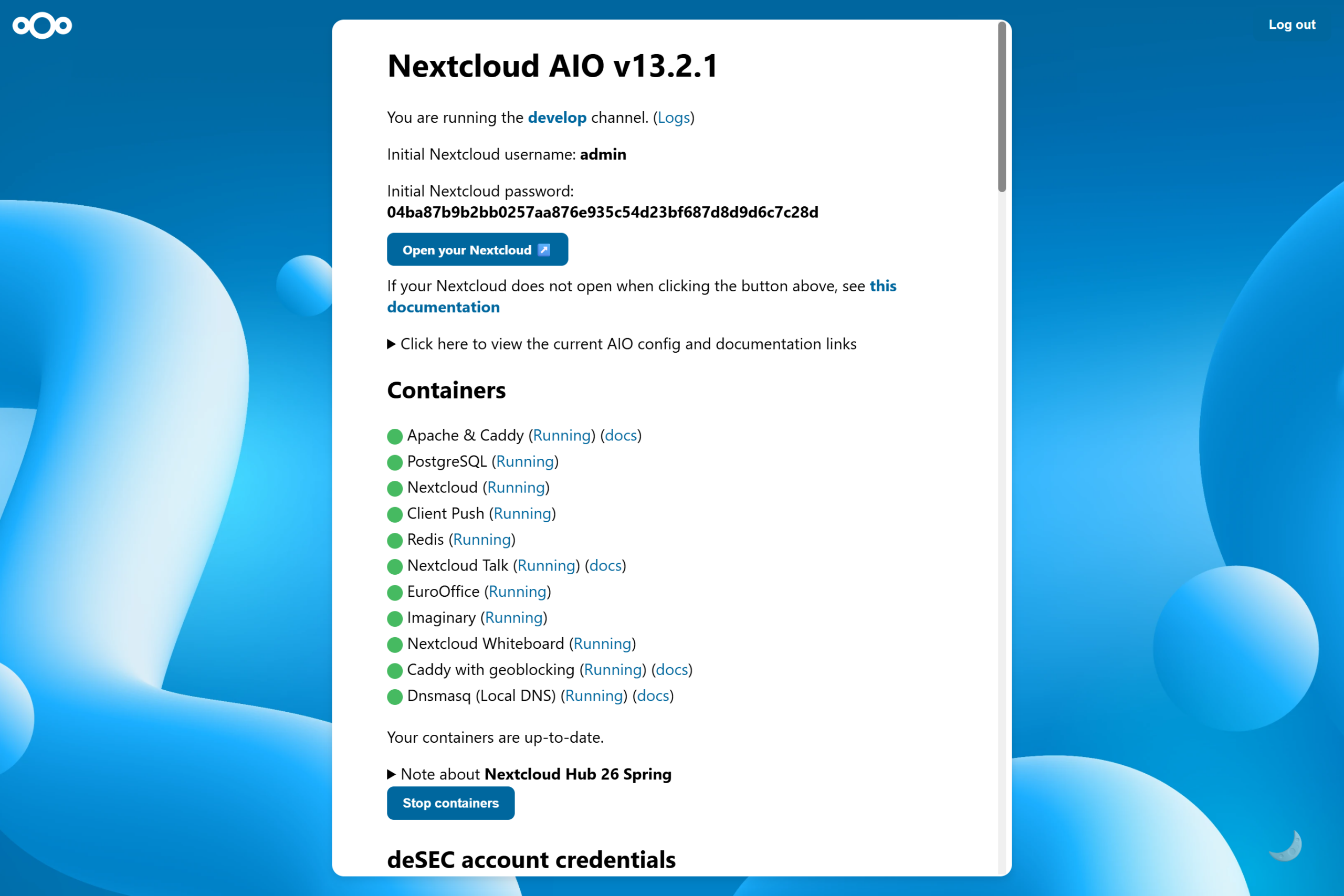
For step-by-step instructions on how to set up Nextcloud AIO on your machine, please refer to our installation guides for Linux and Windows.
Nextcloud AIO v13.3.1: Introducing integrated deSEC
Since Nextcloud AIO is designed to be used in production, it assumes you have everything you need to deploy it, including a domain with DNS records and a valid SSL certificate. This usually requires some setup, so when you’re still testing, you might want an easier solution.
That’s why, to celebrate Nextcloud AIO’s 10,000th GitHub star, we’ve published a new release that includes a feature for automatically setting up a domain and DNS.
With this new feature, you can obtain a free domain for your Nextcloud right from the AIO interface in just a few clicks. It uses the Berlin-based, non-profit DNS hosting service deSEC, which provides an API that Nextcloud AIO can use to handle the technical setup of the domain automatically. This includes setting the necessary DNS records, ensuring the domain points to the right server, and requesting the SSL certificate needed for an HTTPS connection. Since deSEC obtains the certificate via the DNS challenge, you don’t have to open and forward ports manually until you actually want to make the instance publicly accessible.
All of this saves you a lot of time when setting up your Nextcloud.
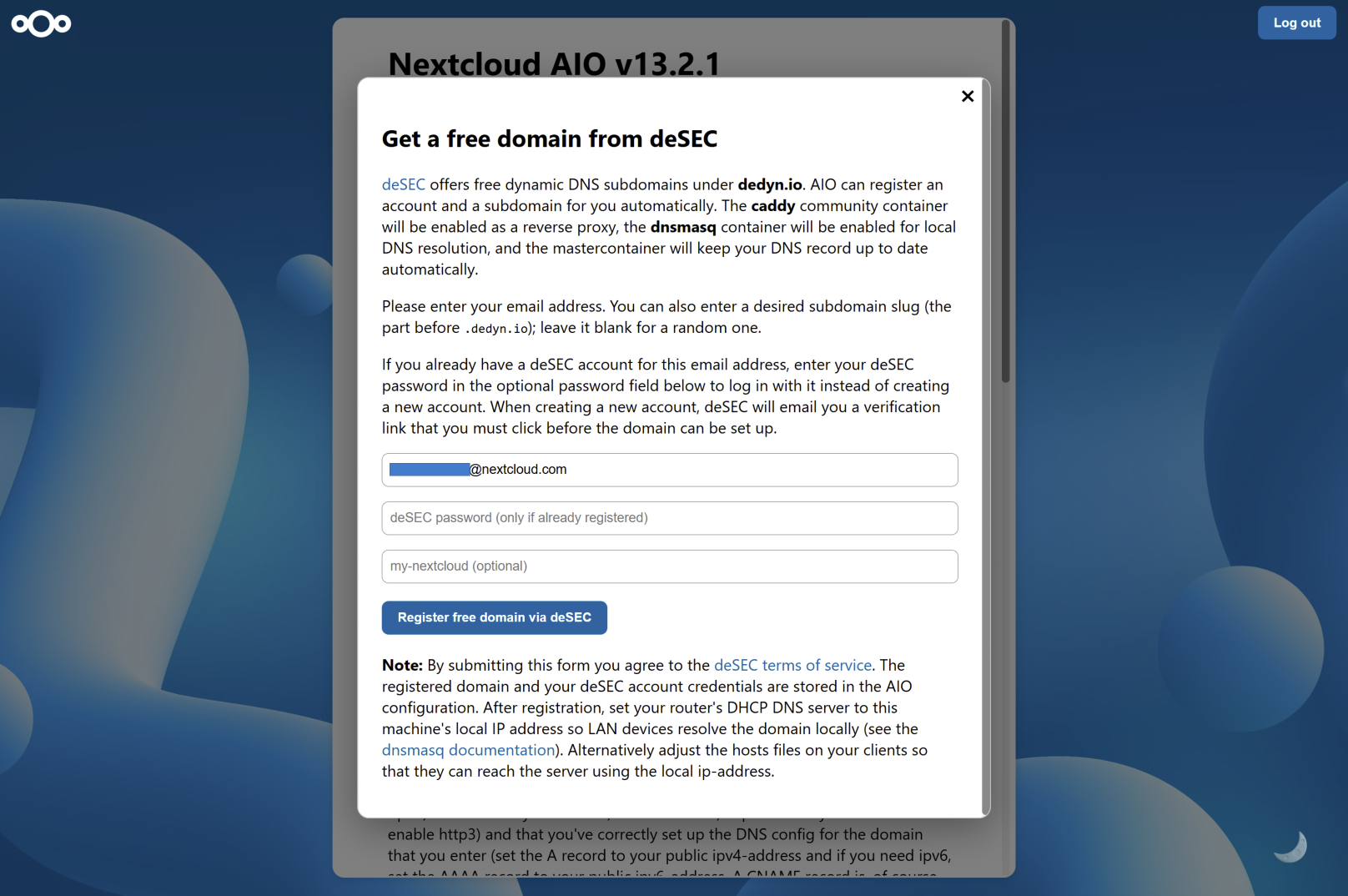
Get started with Nextcloud All-in-One
Curious to try Nextcloud AIO? If you have Docker installed, you can spin up a test instance (without a web server or reverse proxy in place) on your Linux machine with the following command:
sudo docker run \
--sig-proxy=false \
--name nextcloud-aio-mastercontainer \
--restart always \
--publish 80:80 \
--publish 8080:8080 \
--publish 8443:8443 \
--volume nextcloud_aio_mastercontainer:/mnt/docker-aio-config \
--volume /var/run/docker.sock:/var/run/docker.sock:ro \
ghcr.io/nextcloud-releases/all-in-one:latest
Or if you’re on Windows and use Docker Desktop:
docker run ^
--sig-proxy=false ^
--name nextcloud-aio-mastercontainer ^
--restart always ^
--publish 80:80 ^
--publish 8080:8080 ^
--publish 8443:8443 ^
--volume nextcloud_aio_mastercontainer:/mnt/docker-aio-config ^
--volume //var/run/docker.sock:/var/run/docker.sock:ro ^
-e NEXTCLOUD_DATADIR="/run/desktop/mnt/host/c/ncdata" ^
ghcr.io/nextcloud-releases/all-in-one:latestAfter logging into Nextcloud AIO with your passphrase, you’ll see a section titled “Don’t have a domain? Get a free one from deSEC” on the start screen.
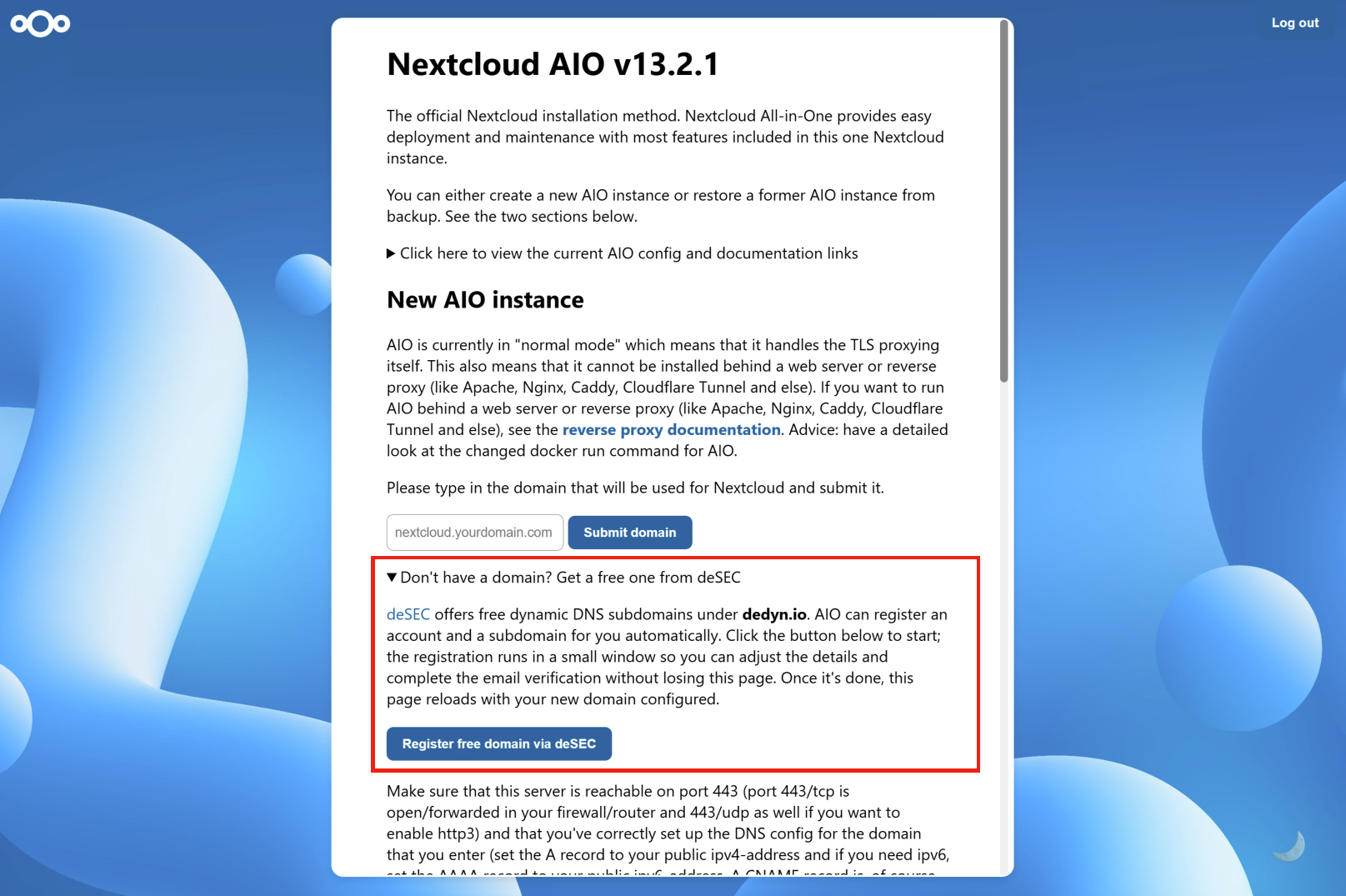
Clicking on the button will open a window in which you can create a new account with deSEC or enter your credentials if you already have one.
As soon as your account has been activated and you’ve registered the domain, Nextcloud AIO will configure everything for you, including setting up caddy as a reverse proxy and dnsmasq for local DNS resolution. The other containers required for your Nextcloud installation will also be downloaded and started automatically. A list of green containers will let you know that your Nextcloud is ready to go.
Nextcloud All-in-One for enterprises
Nextcloud AIO is an excellent way to run your own Nextcloud instance at home, but it also performs well at scale. If you’re an organization looking for a Nextcloud provider who manages your instance for a large number of users, then Nextcloud Enterprise is for you — have a look at our trusted partners.
Want to learn more about what Nextcloud Enterprise has to offer? Then join our webinar, where we’ll answer all your questions regarding Nextcloud and your use case.