Can't reach my Nextcloud after restore

Nextcloud AIO v12.5.0

Hi.

I want to move my Nextcloud AIO from my Synology with Synology reverse proxy to a Debian 13 server without a reverse proxy.

The Backup with AIO’s internal borg backup on Synology works perfectly. Restoring to the Debian 13 server also works.

All containers are started and are ok.

But when I want to open my nextcloud page only “page loading error” is in the Browser.

If I do a new installation without a restored backup with the same docker compose file, the nextcloud works.

Here the AIO Log:

2026-01-29T17:13:14.354794191Z Trying to fix docker.sock permissions internally...
2026-01-29T17:13:14.359600428Z Creating docker group internally with id 989
2026-01-29T17:13:15.403023026Z ......+..+.+..+....+.....+...+......+++++++++++++++++++++++++++++++++++++++++++++*...+......+.......+...+.....+.......+..+...+......+.+.....+...+...+++++++++++++++++++++++++++++++++++++++++++++*............+......+.....+.........+.+...........+.+.........+........+............+.+........+.......+........+......+......+.......+......+..+.......+........+...+...............+.......+...............+.........+...+.....................+......+...+........+............+.+......+.....+.+.................+.......+...............+...+..+...............+...+..........+..+.........+...................+...........+.+......+............+..+.+.....+..................+....+...+..................+..+..................................+.....+.+...+..+...................+..................+........+....+...+........+.......+...+.....+............+......+.......+..+......+......+.+..+.............+...+.....+......+......+....+.....+......+....+...+.....+......+....+.................+....+..+....+...............+...+..+.............+......+...........+......+...+++++
2026-01-29T17:13:15.607944549Z ..+.+..+.........+......+...+.+..............+....+++++++++++++++++++++++++++++++++++++++++++++*...+......+.........+.....+.+..+......+.+..............................+...+..+......+.......+.....+++++++++++++++++++++++++++++++++++++++++++++*..........+............................................+.....................+...+.+...............+.....+......+......+....+...+...+...+.................+.............+..+...+....+...........+.+...+......+...........+.+..+............+.+..+............+......+..........+..+++++
2026-01-29T17:13:15.653068754Z -----
2026-01-29T17:13:15.685265388Z e[0;92mInitial startup of Nextcloud All-in-One complete!
2026-01-29T17:13:15.685285368Z You should be able to open the Nextcloud AIO Interface now on port 8080 of this server!
2026-01-29T17:13:15.685288763Z E.g. https://internal.ip.of.this.server:8080
2026-01-29T17:13:15.685290766Z ⚠️ Important: do always use an ip-address if you access this port and not a domain as HSTS might block access to it later!
2026-01-29T17:13:15.685293782Z 
2026-01-29T17:13:15.685295724Z If your server has port 80 and 8443 open and you point a domain to your server, you can get a valid certificate automatically by opening the Nextcloud AIO Interface via:
2026-01-29T17:13:15.685297789Z https://your-domain-that-points-to-this-server.tld:8443e[0m
2026-01-29T17:13:17.132821256Z {"level":"info","ts":1769706797.13251,"msg":"maxprocs: Leaving GOMAXPROCS=4: CPU quota undefined"}
2026-01-29T17:13:17.132921926Z {"level":"info","ts":1769706797.1327088,"msg":"GOMEMLIMIT is updated","package":"github.com/KimMachineGun/automemlimit/memlimit","GOMEMLIMIT":7292757196,"previous":9223372036854775807}
2026-01-29T17:13:17.132947648Z {"level":"info","ts":1769706797.1327548,"msg":"using config from file","file":"/Caddyfile"}
2026-01-29T17:13:17.134871828Z {"level":"info","ts":1769706797.134713,"msg":"adapted config to JSON","adapter":"caddyfile"}
2026-01-29T17:13:17.136474889Z [29-Jan-2026 17:13:17] NOTICE: fpm is running, pid 155
2026-01-29T17:13:17.136695254Z [29-Jan-2026 17:13:17] NOTICE: ready to handle connections
2026-01-29T17:13:17.140308107Z {"level":"info","ts":1769706797.1400917,"msg":"serving initial configuration"}
2026-01-29T17:13:17.142994101Z [Thu Jan 29 17:13:17.142709 2026] [mpm_event:notice] [pid 149:tid 149] AH00489: Apache/2.4.66 (Unix) OpenSSL/3.5.4 configured -- resuming normal operations
2026-01-29T17:13:17.143020552Z [Thu Jan 29 17:13:17.142749 2026] [core:notice] [pid 149:tid 149] AH00094: Command line: 'httpd -D FOREGROUND'
2026-01-29T17:19:37.387082271Z NOTICE: PHP message: Slim Application Error
2026-01-29T17:19:37.387102956Z Type: GuzzleHttp\Exception\ClientException
2026-01-29T17:19:37.387107396Z Code: 404
2026-01-29T17:19:37.387110601Z Message: Client error: `POST http://127.0.0.1/v1.44/networks/frontend_net/connect` resulted in a `404 Not Found` response:
2026-01-29T17:19:37.387113716Z {"message":"network frontend_net not found"}
2026-01-29T17:19:37.387116602Z File: /var/www/docker-aio/php/vendor/guzzlehttp/guzzle/src/Exception/RequestException.php
2026-01-29T17:19:37.387119391Z Line: 111
2026-01-29T17:19:37.387122341Z Trace: #0 /var/www/docker-aio/php/vendor/guzzlehttp/guzzle/src/Middleware.php(72): GuzzleHttp\Exception\RequestException::create(Object(GuzzleHttp\Psr7\Request), Object(GuzzleHttp\Psr7\Response), NULL, Array, NULL)
2026-01-29T17:19:37.387126448Z #1 /var/www/docker-aio/php/vendor/guzzlehttp/promises/src/Promise.php(209): GuzzleHttp\Middleware::{closure:{closure:{closure:GuzzleHttp\Middleware::httpErrors():60}:61}:67}(Object(GuzzleHttp\Psr7\Response))
2026-01-29T17:19:37.387129694Z #2 /var/www/docker-aio/php/vendor/guzzlehttp/promises/src/Promise.php(158): GuzzleHttp\Promise\Promise::callHandler(1, Object(GuzzleHttp\Psr7\Response), NULL)
2026-01-29T17:19:37.387132698Z #3 /var/www/docker-aio/php/vendor/guzzlehttp/promises/src/TaskQueue.php(52): GuzzleHttp\Promise\Promise::{closure:GuzzleHttp\Promise\Promise::settle():156}()
2026-01-29T17:19:37.387135680Z #4 /var/www/docker-aio/php/vendor/guzzlehttp/promises/src/Promise.php(251): GuzzleHttp\Promise\TaskQueue->run(true)
2026-01-29T17:19:37.387138821Z #5 /var/www/docker-aio/php/vendor/guzzlehttp/promises/src/Promise.php(227): GuzzleHttp\Promise\Promise->invokeWaitFn()
2026-01-29T17:19:37.387141647Z #6 /var/www/docker-aio/php/vendor/guzzlehttp/promises/src/Promise.php(272): GuzzleHttp\Promise\Promise->waitIfPending()
2026-01-29T17:19:37.387144505Z #7 /var/www/docker-aio/php/vendor/guzzlehttp/promises/src/Promise.php(229): GuzzleHttp\Promise\Promise->invokeWaitList()
2026-01-29T17:19:37.387147393Z #8 /var/www/docker-aio/php/vendor/guzzlehttp/promises/src/Promise.php(69): GuzzleHttp\Promise\Promise->waitIfPending()
2026-01-29T17:19:37.387150211Z #9 /var/www/docker-aio/php/vendor/guzzlehttp/guzzle/src/Client.php(189): GuzzleHttp\Promise\Promise->wait()
2026-01-29T17:19:37.387153021Z #10 /var/www/docker-aio/php/src/Docker/DockerActionManager.php(879): GuzzleHttp\Client->request('POST', 'http://127.0.0....', Array)
2026-01-29T17:19:37.387156912Z #11 /var/www/docker-aio/php/src/Docker/DockerActionManager.php(911): AIO\Docker\DockerActionManager->ConnectContainerIdToNetwork('nextcloud-aio-a...', '%APACHE_PORT%', 'frontend_net', false, '')
2026-01-29T17:19:37.387166314Z #12 /var/www/docker-aio/php/src/Controller/DockerController.php(42): AIO\Docker\DockerActionManager->ConnectContainerToNetwork(Object(AIO\Container\Container))
2026-01-29T17:19:37.387169337Z #13 /var/www/docker-aio/php/src/Controller/DockerController.php(226): AIO\Controller\DockerController->PerformRecursiveContainerStart('nextcloud-aio-a...', true)
2026-01-29T17:19:37.387171725Z #14 /var/www/docker-aio/php/src/Controller/DockerController.php(206): AIO\Controller\DockerController->startTopContainer(true)
2026-01-29T17:19:37.387173871Z #15 /var/www/docker-aio/php/vendor/slim/slim/Slim/Handlers/Strategies/RequestResponse.php(39): AIO\Controller\DockerController->StartContainer(Object(GuzzleHttp\Psr7\ServerRequest), Object(GuzzleHttp\Psr7\Response), Array)
2026-01-29T17:19:37.387176368Z #16 /var/www/docker-aio/php/vendor/slim/slim/Slim/Routing/Route.php(362): Slim\Handlers\Strategies\RequestResponse->__invoke(Array, Object(GuzzleHttp\Psr7\ServerRequest), Object(GuzzleHttp\Psr7\Response), Array)
2026-01-29T17:19:37.387178805Z #17 /var/www/docker-aio/php/vendor/slim/slim/Slim/MiddlewareDispatcher.php(73): Slim\Routing\Route->handle(Object(GuzzleHttp\Psr7\ServerRequest))
2026-01-29T17:19:37.387181025Z #18 /var/www/docker-aio/php/vendor/slim/slim/Slim/MiddlewareDispatcher.php(73): Slim\MiddlewareDispatcher->handle(Object(GuzzleHttp\Psr7\ServerRequest))
2026-01-29T17:19:37.387183194Z #19 /var/www/docker-aio/php/vendor/slim/slim/Slim/Routing/Route.php(321): Slim\MiddlewareDispatcher->handle(Object(GuzzleHttp\Psr7\ServerRequest))
2026-01-29T17:19:37.387185230Z #20 /var/www/docker-aio/php/vendor/slim/slim/Slim/Routing/RouteRunner.php(74): Slim\Routing\Route->run(Object(GuzzleHttp\Psr7\ServerRequest))
2026-01-29T17:19:37.387187457Z #21 /var/www/docker-aio/php/vendor/slim/csrf/src/Guard.php(482): Slim\Routing\RouteRunner->handle(Object(GuzzleHttp\Psr7\ServerRequest))
2026-01-29T17:19:37.387189707Z #22 /var/www/docker-aio/php/vendor/slim/slim/Slim/MiddlewareDispatcher.php(178): Slim\Csrf\Guard->process(Object(GuzzleHttp\Psr7\ServerRequest), Object(Slim\Routing\RouteRunner))
2026-01-29T17:19:37.387192905Z #23 /var/www/docker-aio/php/vendor/slim/twig-view/src/TwigMiddleware.php(117): Psr\Http\Server\RequestHandlerInterface@anonymous->handle(Object(GuzzleHttp\Psr7\ServerRequest))
2026-01-29T17:19:37.387195457Z #24 /var/www/docker-aio/php/vendor/slim/slim/Slim/MiddlewareDispatcher.php(129): Slim\Views\TwigMiddleware->process(Object(GuzzleHttp\Psr7\ServerRequest), Object(Psr\Http\Server\RequestHandlerInterface@anonymous))
2026-01-29T17:19:37.387198071Z #25 /var/www/docker-aio/php/src/Middleware/AuthMiddleware.php(53): Psr\Http\Server\RequestHandlerInterface@anonymous->handle(Object(GuzzleHttp\Psr7\ServerRequest))
2026-01-29T17:19:37.387200329Z #26 /var/www/docker-aio/php/vendor/slim/slim/Slim/MiddlewareDispatcher.php(283): AIO\Middleware\AuthMiddleware->__invoke(Object(GuzzleHttp\Psr7\ServerRequest), Object(Psr\Http\Server\RequestHandlerInterface@anonymous))
2026-01-29T17:19:37.387202777Z #27 /var/www/docker-aio/php/vendor/slim/slim/Slim/Middleware/ErrorMiddleware.php(77): Psr\Http\Server\RequestHandlerInterface@anonymous->handle(Object(GuzzleHttp\Psr7\ServerRequest))
2026-01-29T17:19:37.387205105Z #28 /var/www/docker-aio/php/vendor/slim/slim/Slim/MiddlewareDispatcher.php(129): Slim\Middleware\ErrorMiddleware->process(Object(GuzzleHttp\Psr7\ServerRequest), Object(Psr\Http\Server\RequestHandlerInterface@anonymous))
2026-01-29T17:19:37.387210244Z #29 /var/www/docker-aio/php/vendor/slim/slim/Slim/MiddlewareDispatcher.php(73): Psr\Http\Server\RequestHandlerInterface@anonymous->handle(Object(GuzzleHttp\Psr7\ServerRequest))
2026-01-29T17:19:37.387212827Z #30 /var/www/docker-aio/php/vendor/slim/slim/Slim/App.php(209): Slim\MiddlewareDispatcher->handle(Object(GuzzleHttp\Psr7\ServerRequest))
2026-01-29T17:19:37.387214936Z #31 /var/www/docker-aio/php/vendor/slim/slim/Slim/App.php(193): Slim\App->handle(Object(GuzzleHttp\Psr7\ServerRequest))
2026-01-29T17:19:37.387217051Z #32 /var/www/docker-aio/php/public/index.php(200): Slim\App->run()
2026-01-29T17:19:37.387219110Z #33 {main}
2026-01-29T17:19:37.387220819Z Tips: To display error details in HTTP response set "displayErrorDetails" to true in the ErrorHandler constructor.


please can somebody help me.
This seems to be the problem

Ok. Thanks

So it seems that after restoring the backup, Docker is using a network that doesn’t exist?

Is there a way to change that?

Because, as I said, a fresh installation works.

For now you can work around it by creating the frontend_net docker network manually

We have a bugfix for this now in only allow to set `APACHE_ADDITIONAL_NETWORK` via environmental variable and do not restore it on backup restore by szaimen · Pull Request #7520 · nextcloud/all-in-one · GitHub

This is now released with v12.6.0 Beta. Testing and feedback is welcome! See GitHub - nextcloud/all-in-one: 📦 The official Nextcloud installation method. Provides easy deployment and maintenance with most features included in this one Nextcloud instance.

Okay, great.

Is it sufficient ithat the instance used for restoration is set to beta, or also the instance from which the backup is made is set to beta?

They are intercompatible

Do I just need to uncomment “APACHE_ADDITIONAL_NETWORK: frontend_net” in my compose.yml file?

Yes, this is definitely a good idea if the docker network does not exist on the target server.

So I set both instances to the beta version and added “APACHE_ADDITIONAL_NETWORK: frontend_net” to the recovery server in the compose.yaml. But the problem still exists.

This is also strange in the AIO log of the Synology is the same entry but connection works there.

2026-01-30T15:44:43.754103364Z Message: Client error: `POST http://127.0.0.1/v1.43/networks/frontend_net/connect\` resulted in a `404 Not Found` response:
2026-01-30T15:44:43.754147382Z {“message”:“network frontend_net not found”}

My completer compose.yaml:

name: nextcloud-aio # Add the container to the same compose project like all the sibling containers are added to automatically.
services:
nextcloud-aio-mastercontainer:
image: ghcr.io/nextcloud-releases/all-in-one:beta # This is the container image used. You can switch to ghcr.io/nextcloud-releases/all-in-one:beta if you want to help testing new releases. See https://github.com/nextcloud/all-in-one#how-to-switch-the-channel
init: true # This setting makes sure that signals from main process inside the container are correctly forwarded to children. See https://docs.docker.com/reference/compose-file/services/#init
restart: always # This makes sure that the container starts always together with the host OS. See https://docs.docker.com/reference/compose-file/services/#restart
container_name: nextcloud-aio-mastercontainer # This line is not allowed to be changed as otherwise AIO will not work correctly
volumes:
- nextcloud_aio_mastercontainer:/mnt/docker-aio-config # This line is not allowed to be changed as otherwise the built-in backup solution will not work
- /var/run/docker.sock:/var/run/docker.sock:ro # May be changed on macOS, Windows or docker rootless. See the applicable documentation. If adjusting, don’t forget to also set ‘WATCHTOWER_DOCKER_SOCKET_PATH’!
network_mode: bridge # This adds the container to the same network as docker run would do. Comment this line and uncomment the line below and the networks section at the end of the file if you want to define a custom MTU size for the docker network
# networks: \[“nextcloud-aio”\]
ports:
- 80:80 # Can be removed when running behind a web server or reverse proxy (like Apache, Nginx, Caddy, Cloudflare Tunnel and else). See https://github.com/nextcloud/all-in-one/blob/main/reverse-proxy.md
- 8080:8080 # This is the AIO interface, served via https and self-signed certificate. See https://github.com/nextcloud/all-in-one#explanation-of-used-ports
- 8443:8443 # Can be removed when running behind a web server or reverse proxy (like Apache, Nginx, Caddy, Cloudflare Tunnel and else). See https://github.com/nextcloud/all-in-one/blob/main/reverse-proxy.md
# security_opt: \[“label:disable”\] # Is needed when using SELinux. See https://github.com/nextcloud/all-in-one#are-there-known-problems-when-selinux-is-enabled
environment: # Is needed when using any of the options below
# AIO_DISABLE_BACKUP_SECTION: false # Setting this to true allows to hide the backup section in the AIO interface. See https://github.com/nextcloud/all-in-one#how-to-disable-the-backup-section
# APACHE_PORT: 11000 # Is needed when running behind a web server or reverse proxy (like Apache, Nginx, Caddy, Cloudflare Tunnel and else). See https://github.com/nextcloud/all-in-one/blob/main/reverse-proxy.md
# APACHE_IP_BINDING: 127.0.0.1 # Should be set when running behind a web server or reverse proxy (like Apache, Nginx, Caddy, Cloudflare Tunnel and else) that is running on the same host. See https://github.com/nextcloud/all-in-one/blob/main/reverse-proxy.md
APACHE_ADDITIONAL_NETWORK: frontend_net # (Optional) Connect the apache container to an additional docker network. Needed when behind a web server or reverse proxy (like Apache, Nginx, Caddy, Cloudflare Tunnel and else) running in a different docker network on same server. See https://github.com/nextcloud/all-in-one/blob/main/reverse-proxy.md
# BORG_RETENTION_POLICY: --keep-within=7d --keep-weekly=4 --keep-monthly=6 # Allows to adjust borgs retention policy. See https://github.com/nextcloud/all-in-one#how-to-adjust-borgs-retention-policy
# COLLABORA_SECCOMP_DISABLED: false # Setting this to true allows to disable Collabora’s Seccomp feature. See https://github.com/nextcloud/all-in-one#how-to-disable-collaboras-seccomp-feature
# DOCKER_API_VERSION: 1.44 # You can adjust the internally used docker api version with this variable. ⚠️⚠️⚠️ Warning: please note that only the default api version (unset this variable) is supported and tested by the maintainers of Nextcloud AIO. So use this on your own risk and things might break without warning. See https://github.com/nextcloud/all-in-one#how-to-adjust-the-internally-used-docker-api-version
# FULLTEXTSEARCH_JAVA_OPTIONS: “-Xms1024M -Xmx1024M” # Allows to adjust the fulltextsearch java options. See https://github.com/nextcloud/all-in-one#how-to-adjust-the-fulltextsearch-java-options
NEXTCLOUD_DATADIR: /home/stefan/docker/nextcloud/data # Allows to set the host directory for Nextcloud’s datadir. ⚠️⚠️⚠️ Warning: do not set or adjust this value after the initial Nextcloud installation is done! See https://github.com/nextcloud/all-in-one#how-to-change-the-default-location-of-nextclouds-datadir
# NEXTCLOUD_MOUNT: /mnt/ # Allows the Nextcloud container to access the chosen directory on the host. See https://github.com/nextcloud/all-in-one#how-to-allow-the-nextcloud-container-to-access-directories-on-the-host
# NEXTCLOUD_UPLOAD_LIMIT: 16G # Can be adjusted if you need more. See https://github.com/nextcloud/all-in-one#how-to-adjust-the-upload-limit-for-nextcloud
# NEXTCLOUD_MAX_TIME: 3600 # Can be adjusted if you need more. See https://github.com/nextcloud/all-in-one#how-to-adjust-the-max-execution-time-for-nextcloud
# NEXTCLOUD_MEMORY_LIMIT: 512M # Can be adjusted if you need more. See https://github.com/nextcloud/all-in-one#how-to-adjust-the-php-memory-limit-for-nextcloud
# NEXTCLOUD_TRUSTED_CACERTS_DIR: /path/to/my/cacerts # CA certificates in this directory will be trusted by the OS of the nextcloud container (Useful e.g. for LDAPS) See https://github.com/nextcloud/all-in-one#how-to-trust-user-defined-certification-authorities-ca
# NEXTCLOUD_STARTUP_APPS: deck twofactor_totp tasks calendar contacts notes # Allows to modify the Nextcloud apps that are installed on starting AIO the first time. See https://github.com/nextcloud/all-in-one#how-to-change-the-nextcloud-apps-that-are-installed-on-the-first-startup
# NEXTCLOUD_ADDITIONAL_APKS: imagemagick # This allows to add additional packages to the Nextcloud container permanently. Default is imagemagick but can be overwritten by modifying this value. See https://github.com/nextcloud/all-in-one#how-to-add-os-packages-permanently-to-the-nextcloud-container
# NEXTCLOUD_ADDITIONAL_PHP_EXTENSIONS: imagick # This allows to add additional php extensions to the Nextcloud container permanently. Default is imagick but can be overwritten by modifying this value. See https://github.com/nextcloud/all-in-one#how-to-add-php-extensions-permanently-to-the-nextcloud-container
NEXTCLOUD_ENABLE_DRI_DEVICE: true # This allows to enable the /dev/dri device for containers that profit from it. ⚠️⚠️⚠️ Warning: this only works if the ‘/dev/dri’ device is present on the host! If it should not exist on your host, don’t set this to true as otherwise the Nextcloud container will fail to start! See https://github.com/nextcloud/all-in-one#how-to-enable-hardware-acceleration-for-nextcloud
# NEXTCLOUD_ENABLE_NVIDIA_GPU: true # This allows to enable the NVIDIA runtime and GPU access for containers that profit from it. ⚠️⚠️⚠️ Warning: this only works if an NVIDIA gpu is installed on the server. See https://github.com/nextcloud/all-in-one#how-to-enable-hardware-acceleration-for-nextcloud.
# NEXTCLOUD_KEEP_DISABLED_APPS: false # Setting this to true will keep Nextcloud apps that are disabled in the AIO interface and not uninstall them if they should be installed. See https://github.com/nextcloud/all-in-one#how-to-keep-disabled-apps
# SKIP_DOMAIN_VALIDATION: false # This should only be set to true if things are correctly configured. See https://github.com/nextcloud/all-in-one#how-to-skip-the-domain-validation
# TALK_PORT: 3478 # This allows to adjust the port that the talk container is using which is exposed on the host. See https://github.com/nextcloud/all-in-one#how-to-adjust-the-talk-port
# WATCHTOWER_DOCKER_SOCKET_PATH: /var/run/docker.sock # Needs to be specified if the docker socket on the host is not located in the default ‘/var/run/docker.sock’. Otherwise mastercontainer updates will fail. For macos it needs to be ‘/var/run/docker.sock’

\# Optional: Caddy reverse proxy. See https://github.com/nextcloud/all-in-one/discussions/575

\# Alternatively, use Tailscale if you don’t have a domain yet. See https://github.com/nextcloud/all-in-one/discussions/6817

\# Hint: You need to uncomment APACHE_PORT: 11000 above, adjust cloud.example.com to your domain and uncomment the necessary docker volumes at the bottom of this file in order to make it work

\# You can find further examples here: https://github.com/nextcloud/all-in-one/discussions/588

caddy:

image: caddy:alpine

restart: always

container_name: caddy

volumes:

\- caddy_certs:/certs

\- caddy_config:/config

\- caddy_data:/data

\- caddy_sites:/srv

network_mode: “host”

configs:

\- source: Caddyfile

target: /etc/caddy/Caddyfile

configs:

Caddyfile:

content: |

\# Adjust cloud.example.com to your domain below

https://cloud.example.com:443 {

reverse_proxy localhost:11000

}

volumes: # If you want to store the data on a different drive, see https://github.com/nextcloud/all-in-one#how-to-store-the-filesinstallation-on-a-separate-drive
nextcloud_aio_mastercontainer:
name: nextcloud_aio_mastercontainer # This line is not allowed to be changed as otherwise the built-in backup solution will not work

caddy_certs:

caddy_config:

caddy_data:

caddy_sites:

\# Adjust the MTU size of the docker network. See https://github.com/nextcloud/all-in-one#how-to-adjust-the-mtu-size-of-the-docker-network

networks:

nextcloud-aio:

name: nextcloud-aio

driver_opts:

com.docker.network.driver.mtu: 1440

You need to remove this setting on your synology. Otherwise it will not work as the network apparently does not exist there. Alternstively, create the docker network frontend_net on your synology manually.

APACHE_ADDITIONAL_NETWORK: frontend_net

Is not in the Synology (Backup) only in the new Debian 13 ( Recovery) compose.

I see. Did you already change the synology install of AIO to the new beta release?

Yes, both instances have migrated to Beta V12.6.0. But still no connection to the recovered nextcloud on the debian system without reverse proxy.

Here both compose files:

  1. Synology with external reverse proxy on same host not docker (works)
services:
nextcloud-aio-mastercontainer:
image: nextcloud/all-in-one:beta
init: true
restart: always
container_name: nextcloud-aio-mastercontainer # This line is not allowed to be changed as otherwise AIO will not work correctly
volumes:
- nextcloud_aio_mastercontainer:/mnt/docker-aio-config # This line is not allowed to be changed as otherwise the built-in backup solution will not work
- /var/run/docker.sock:/var/run/docker.sock:ro # May be changed on macOS, Windows or docker rootless. See the applicable documentation. If adjusting, don’t forget to also set ‘WATCHTOWER_DOCKER_SOCKET_PATH’!
network_mode: bridge # add to the same network as docker run would do
ports:
- 8083:8080
environment: # Is needed when using any of the options below
# AIO_DISABLE_BACKUP_SECTION: false # Setting this to true allows to hide the backup section in the AIO interface. See https://github.com/nextcloud/all-in-one#how-to-disable-the-backup-section
# AIO_COMMUNITY_CONTAINERS: # With this variable, you can add community containers very easily. See https://github.com/nextcloud/all-in-one/tree/main/community-containers#community-containers
APACHE_PORT: 11000 # Is needed when running behind a web server or reverse proxy (like Apache, Nginx, Caddy, Cloudflare Tunnel and else). See https://github.com/nextcloud/all-in-one/blob/main/reverse-proxy.md
APACHE_IP_BINDING: 0.0.0.0 # Should be set when running behind a web server or reverse proxy (like Apache, Nginx, Caddy, Cloudflare Tunnel and else) that is running on the same host. See https://github.com/nextcloud/all-in-one/blob/main/reverse-proxy.md
# APACHE_ADDITIONAL_NETWORK: frontend_net # (Optional) Connect the apache container to an additional docker network. Needed when behind a web server or reverse proxy (like Apache, Nginx, Caddy, Cloudflare Tunnel and else) running in a different docker network on same server. See https://github.com/nextcloud/all-in-one/blob/main/reverse-proxy.md
# BORG_RETENTION_POLICY: --keep-within=7d --keep-weekly=4 --keep-monthly=6 # Allows to adjust borgs retention policy. See https://github.com/nextcloud/all-in-one#how-to-adjust-borgs-retention-policy
COLLABORA_SECCOMP_DISABLED: true # Setting this to true allows to disable Collabora’s Seccomp feature. See https://github.com/nextcloud/all-in-one#how-to-disable-collaboras-seccomp-feature
# FULLTEXTSEARCH_JAVA_OPTIONS: “-Xms1024M -Xmx1024M” # Allows to adjust the fulltextsearch java options. See https://github.com/nextcloud/all-in-one#how-to-adjust-the-fulltextsearch-java-options
NEXTCLOUD_DATADIR: /volume2/docker/nxcloud/data # Allows to set the host directory for Nextcloud’s datadir.  Warning: do not set or adjust this value after the initial Nextcloud installation is done! See https://github.com/nextcloud/all-in-one#how-to-change-the-default-location-of-nextclouds-datadir
# NEXTCLOUD_MOUNT: /mnt/ # Allows the Nextcloud container to access the chosen directory on the host. See https://github.com/nextcloud/all-in-one#how-to-allow-the-nextcloud-container-to-access-directories-on-the-host
# NEXTCLOUD_UPLOAD_LIMIT: 16G # Can be adjusted if you need more. See https://github.com/nextcloud/all-in-one#how-to-adjust-the-upload-limit-for-nextcloud
# NEXTCLOUD_MAX_TIME: 3600 # Can be adjusted if you need more. See https://github.com/nextcloud/all-in-one#how-to-adjust-the-max-execution-time-for-nextcloud
# NEXTCLOUD_MEMORY_LIMIT: 512M # Can be adjusted if you need more. See https://github.com/nextcloud/all-in-one#how-to-adjust-the-php-memory-limit-for-nextcloud
# NEXTCLOUD_TRUSTED_CACERTS_DIR: /path/to/my/cacerts # CA certificates in this directory will be trusted by the OS of the nextcloud container (Useful e.g. for LDAPS) See https://github.com/nextcloud/all-in-one#how-to-trust-user-defined-certification-authorities-ca
# NEXTCLOUD_STARTUP_APPS: deck twofactor_totp tasks calendar contacts notes # Allows to modify the Nextcloud apps that are installed on starting AIO the first time. See https://github.com/nextcloud/all-in-one#how-to-change-the-nextcloud-apps-that-are-installed-on-the-first-startup
# NEXTCLOUD_ADDITIONAL_APKS: imagemagick # This allows to add additional packages to the Nextcloud container permanently. Default is imagemagick but can be overwritten by modifying this value. See https://github.com/nextcloud/all-in-one#how-to-add-os-packages-permanently-to-the-nextcloud-container
# NEXTCLOUD_ADDITIONAL_PHP_EXTENSIONS: imagick # This allows to add additional php extensions to the Nextcloud container permanently. Default is imagick but can be overwritten by modifying this value. See https://github.com/nextcloud/all-in-one#how-to-add-php-extensions-permanently-to-the-nextcloud-container
# NEXTCLOUD_ENABLE_DRI_DEVICE: true # This allows to enable the /dev/dri device for containers that profit from it.  Warning: this only works if the ‘/dev/dri’ device is present on the host! If it should not exist on your host, don’t set this to true as otherwise the Nextcloud container will fail to start! See https://github.com/nextcloud/all-in-one#how-to-enable-hardware-acceleration-for-nextcloud
# NEXTCLOUD_ENABLE_NVIDIA_GPU: true # This allows to enable the NVIDIA runtime and GPU access for containers that profit from it. Warning: this only works if an NVIDIA gpu is installed on the server. See https://github.com/nextcloud/all-in-one#how-to-enable-hardware-acceleration-for-nextcloud .
# NEXTCLOUD_KEEP_DISABLED_APPS: false # Setting this to true will keep Nextcloud apps that are disabled in the AIO interface and not uninstall them if they should be installed. See https://github.com/nextcloud/all-in-one#how-to-keep-disabled-apps
# SKIP_DOMAIN_VALIDATION: false # This should only be set to true if things are correctly configured. See https://github.com/nextcloud/all-in-one?tab=readme-ov-file#how-to-skip-the-domain-validation
TALK_PORT: 3478 # This allows to adjust the port that the talk container is using which is exposed on the host. See https://github.com/nextcloud/all-in-one#how-to-adjust-the-talk-port
# WATCHTOWER_DOCKER_SOCKET_PATH: /var/run/docker.sock # Needs to be specified if the docker socket on the host is not located in the default ‘/var/run/docker.sock’. Otherwise mastercontainer updates will fail. For macos it needs to be ‘/var/run/docker.sock’
DOCKER_API_VERSION: 1.43 # Wegen alter Dockerversion auf Synology
DNS: 8.8.8.8
# security_opt: \[“label:disable”\] # Is needed when using SELinux

# # Optional: Caddy reverse proxy. See https://github.com/nextcloud/all-in-one/discussions/575

# # Alternatively, use Tailscale if you don’t have a domain yet. See https://github.com/nextcloud/all-in-one/discussions/5439

# # Hint: You need to uncomment APACHE_PORT: 11000 above, adjust cloud.example.com to your domain and uncomment the necessary docker volumes at the bottom of this file in order to make it work

# # You can find further examples here: https://github.com/nextcloud/all-in-one/discussions/588

# caddy:

# image: caddy:alpine

# restart: always

# container_name: caddy

# volumes:

# - caddy_certs:/certs

# - caddy_config:/config

# - caddy_data:/data

# - caddy_sites:/srv

# network_mode: “host”

# configs:

# - source: Caddyfile

# target: /etc/caddy/Caddyfile

# configs:

# Caddyfile:

# content: |

# # Adjust cloud.example.com to your domain below

# https://cloud.example.com:443 {

# reverse_proxy localhost:11000

# }

volumes: # If you want to store the data on a different drive, see https://github.com/nextcloud/all-in-one#how-to-store-the-filesinstallation-on-a-separate-drive
nextcloud_aio_mastercontainer:
name: nextcloud_aio_mastercontainer # This line is not allowed to be changed as otherwise the built-in backup solution will not work

# caddy_certs:

# caddy_config:

# caddy_data:

# caddy_sites:

##############################################################

###############################################################

2. Debian without reverse proxy should use the **Integrated**: AIO's built-in reverse proxy with automatic HTTPS. (not working from recover only new instalation works )

name: nextcloud-aio # Add the container to the same compose project like all the sibling containers are added to automatically.
services:
nextcloud-aio-mastercontainer:
image: ghcr.io/nextcloud-releases/all-in-one:beta # This is the container image used. You can switch to ghcr.io/nextcloud-releases/all-in-one:beta if you want to help testing new releases. See https://github.com/nextcloud/all-in-one#how-to-switch-the-channel
init: true # This setting makes sure that signals from main process inside the container are correctly forwarded to children. See https://docs.docker.com/reference/compose-file/services/#init
restart: always # This makes sure that the container starts always together with the host OS. See https://docs.docker.com/reference/compose-file/services/#restart
container_name: nextcloud-aio-mastercontainer # This line is not allowed to be changed as otherwise AIO will not work correctly
volumes:
- nextcloud_aio_mastercontainer:/mnt/docker-aio-config # This line is not allowed to be changed as otherwise the built-in backup solution will not work
- /var/run/docker.sock:/var/run/docker.sock:ro # May be changed on macOS, Windows or docker rootless. See the applicable documentation. If adjusting, don’t forget to also set ‘WATCHTOWER_DOCKER_SOCKET_PATH’!
network_mode: bridge # This adds the container to the same network as docker run would do. Comment this line and uncomment the line below and the networks section at the end of the file if you want to define a custom MTU size for the docker network
# networks: \[“nextcloud-aio”\]
ports:
- 80:80 # Can be removed when running behind a web server or reverse proxy (like Apache, Nginx, Caddy, Cloudflare Tunnel and else). See https://github.com/nextcloud/all-in-one/blob/main/reverse-proxy.md
- 8080:8080 # This is the AIO interface, served via https and self-signed certificate. See https://github.com/nextcloud/all-in-one#explanation-of-used-ports
- 8443:8443 # Can be removed when running behind a web server or reverse proxy (like Apache, Nginx, Caddy, Cloudflare Tunnel and else). See https://github.com/nextcloud/all-in-one/blob/main/reverse-proxy.md
# security_opt: \[“label:disable”\] # Is needed when using SELinux. See https://github.com/nextcloud/all-in-one#are-there-known-problems-when-selinux-is-enabled
environment: # Is needed when using any of the options below
# AIO_DISABLE_BACKUP_SECTION: false # Setting this to true allows to hide the backup section in the AIO interface. See https://github.com/nextcloud/all-in-one#how-to-disable-the-backup-section
# APACHE_PORT: 11000 # Is needed when running behind a web server or reverse proxy (like Apache, Nginx, Caddy, Cloudflare Tunnel and else). See https://github.com/nextcloud/all-in-one/blob/main/reverse-proxy.md
# APACHE_IP_BINDING: 127.0.0.1 # Should be set when running behind a web server or reverse proxy (like Apache, Nginx, Caddy, Cloudflare Tunnel and else) that is running on the same host. See https://github.com/nextcloud/all-in-one/blob/main/reverse-proxy.md
APACHE_ADDITIONAL_NETWORK: frontend_net # (Optional) Connect the apache container to an additional docker network. Needed when behind a web server or reverse proxy (like Apache, Nginx, Caddy, Cloudflare Tunnel and else) running in a different docker network on same server. See https://github.com/nextcloud/all-in-one/blob/main/reverse-proxy.md
# BORG_RETENTION_POLICY: --keep-within=7d --keep-weekly=4 --keep-monthly=6 # Allows to adjust borgs retention policy. See https://github.com/nextcloud/all-in-one#how-to-adjust-borgs-retention-policy
# COLLABORA_SECCOMP_DISABLED: false # Setting this to true allows to disable Collabora’s Seccomp feature. See https://github.com/nextcloud/all-in-one#how-to-disable-collaboras-seccomp-feature
# DOCKER_API_VERSION: 1.44 # You can adjust the internally used docker api version with this variable. ⚠️⚠️⚠️ Warning: please note that only the default api version (unset this variable) is supported and tested by the maintainers of Nextcloud AIO. So use this on your own risk and things might break without warning. See https://github.com/nextcloud/all-in-one#how-to-adjust-the-internally-used-docker-api-version
# FULLTEXTSEARCH_JAVA_OPTIONS: “-Xms1024M -Xmx1024M” # Allows to adjust the fulltextsearch java options. See https://github.com/nextcloud/all-in-one#how-to-adjust-the-fulltextsearch-java-options
NEXTCLOUD_DATADIR: /home/stefan/docker/nextcloud/data # Allows to set the host directory for Nextcloud’s datadir. ⚠️⚠️⚠️ Warning: do not set or adjust this value after the initial Nextcloud installation is done! See https://github.com/nextcloud/all-in-one#how-to-change-the-default-location-of-nextclouds-datadir
# NEXTCLOUD_MOUNT: /mnt/ # Allows the Nextcloud container to access the chosen directory on the host. See https://github.com/nextcloud/all-in-one#how-to-allow-the-nextcloud-container-to-access-directories-on-the-host
# NEXTCLOUD_UPLOAD_LIMIT: 16G # Can be adjusted if you need more. See https://github.com/nextcloud/all-in-one#how-to-adjust-the-upload-limit-for-nextcloud
# NEXTCLOUD_MAX_TIME: 3600 # Can be adjusted if you need more. See https://github.com/nextcloud/all-in-one#how-to-adjust-the-max-execution-time-for-nextcloud
# NEXTCLOUD_MEMORY_LIMIT: 512M # Can be adjusted if you need more. See https://github.com/nextcloud/all-in-one#how-to-adjust-the-php-memory-limit-for-nextcloud
# NEXTCLOUD_TRUSTED_CACERTS_DIR: /path/to/my/cacerts # CA certificates in this directory will be trusted by the OS of the nextcloud container (Useful e.g. for LDAPS) See https://github.com/nextcloud/all-in-one#how-to-trust-user-defined-certification-authorities-ca
# NEXTCLOUD_STARTUP_APPS: deck twofactor_totp tasks calendar contacts notes # Allows to modify the Nextcloud apps that are installed on starting AIO the first time. See https://github.com/nextcloud/all-in-one#how-to-change-the-nextcloud-apps-that-are-installed-on-the-first-startup
# NEXTCLOUD_ADDITIONAL_APKS: imagemagick # This allows to add additional packages to the Nextcloud container permanently. Default is imagemagick but can be overwritten by modifying this value. See https://github.com/nextcloud/all-in-one#how-to-add-os-packages-permanently-to-the-nextcloud-container
# NEXTCLOUD_ADDITIONAL_PHP_EXTENSIONS: imagick # This allows to add additional php extensions to the Nextcloud container permanently. Default is imagick but can be overwritten by modifying this value. See https://github.com/nextcloud/all-in-one#how-to-add-php-extensions-permanently-to-the-nextcloud-container
NEXTCLOUD_ENABLE_DRI_DEVICE: true # This allows to enable the /dev/dri device for containers that profit from it. ⚠️⚠️⚠️ Warning: this only works if the ‘/dev/dri’ device is present on the host! If it should not exist on your host, don’t set this to true as otherwise the Nextcloud container will fail to start! See https://github.com/nextcloud/all-in-one#how-to-enable-hardware-acceleration-for-nextcloud
# NEXTCLOUD_ENABLE_NVIDIA_GPU: true # This allows to enable the NVIDIA runtime and GPU access for containers that profit from it. ⚠️⚠️⚠️ Warning: this only works if an NVIDIA gpu is installed on the server. See https://github.com/nextcloud/all-in-one#how-to-enable-hardware-acceleration-for-nextcloud .
# NEXTCLOUD_KEEP_DISABLED_APPS: false # Setting this to true will keep Nextcloud apps that are disabled in the AIO interface and not uninstall them if they should be installed. See https://github.com/nextcloud/all-in-one#how-to-keep-disabled-apps
# SKIP_DOMAIN_VALIDATION: false # This should only be set to true if things are correctly configured. See https://github.com/nextcloud/all-in-one#how-to-skip-the-domain-validation
# TALK_PORT: 3478 # This allows to adjust the port that the talk container is using which is exposed on the host. See https://github.com/nextcloud/all-in-one#how-to-adjust-the-talk-port
# WATCHTOWER_DOCKER_SOCKET_PATH: /var/run/docker.sock # Needs to be specified if the docker socket on the host is not located in the default ‘/var/run/docker.sock’. Otherwise mastercontainer updates will fail. For macos it needs to be ‘/var/run/docker.sock’

# # Optional: Caddy reverse proxy. See https://github.com/nextcloud/all-in-one/discussions/575

# # Alternatively, use Tailscale if you don’t have a domain yet. See https://github.com/nextcloud/all-in-one/discussions/6817

# # Hint: You need to uncomment APACHE_PORT: 11000 above, adjust cloud.example.com to your domain and uncomment the necessary docker volumes at the bottom of this file in order to make it work

# # You can find further examples here: https://github.com/nextcloud/all-in-one/discussions/588

# caddy:

# image: caddy:alpine

# restart: always

# container_name: caddy

# volumes:

# - caddy_certs:/certs

# - caddy_config:/config

# - caddy_data:/data

# - caddy_sites:/srv

# network_mode: “host”

# configs:

# - source: Caddyfile

# target: /etc/caddy/Caddyfile

# configs:

# Caddyfile:

# content: |

# # Adjust cloud.example.com to your domain below

# https://cloud.example.com:443 {

# reverse_proxy localhost:11000

# }

volumes: # If you want to store the data on a different drive, see https://github.com/nextcloud/all-in-one#how-to-store-the-filesinstallation-on-a-separate-drive
nextcloud_aio_mastercontainer:
name: nextcloud_aio_mastercontainer # This line is not allowed to be changed as otherwise the built-in backup solution will not work

# caddy_certs:

# caddy_config:

# caddy_data:

# caddy_sites:

# # Adjust the MTU size of the docker network. See https://github.com/nextcloud/all-in-one#how-to-adjust-the-mtu-size-of-the-docker-network

# networks:

# nextcloud-aio:

# name: nextcloud-aio

# driver_opts:

# com.docker.network.driver.mtu: 1440

So if you open the AIO interface, you see version v12.6.0?

Also, can you please post the output of sudo docker inspect nextcloud-aio-mastercontainer from the synology instance here?

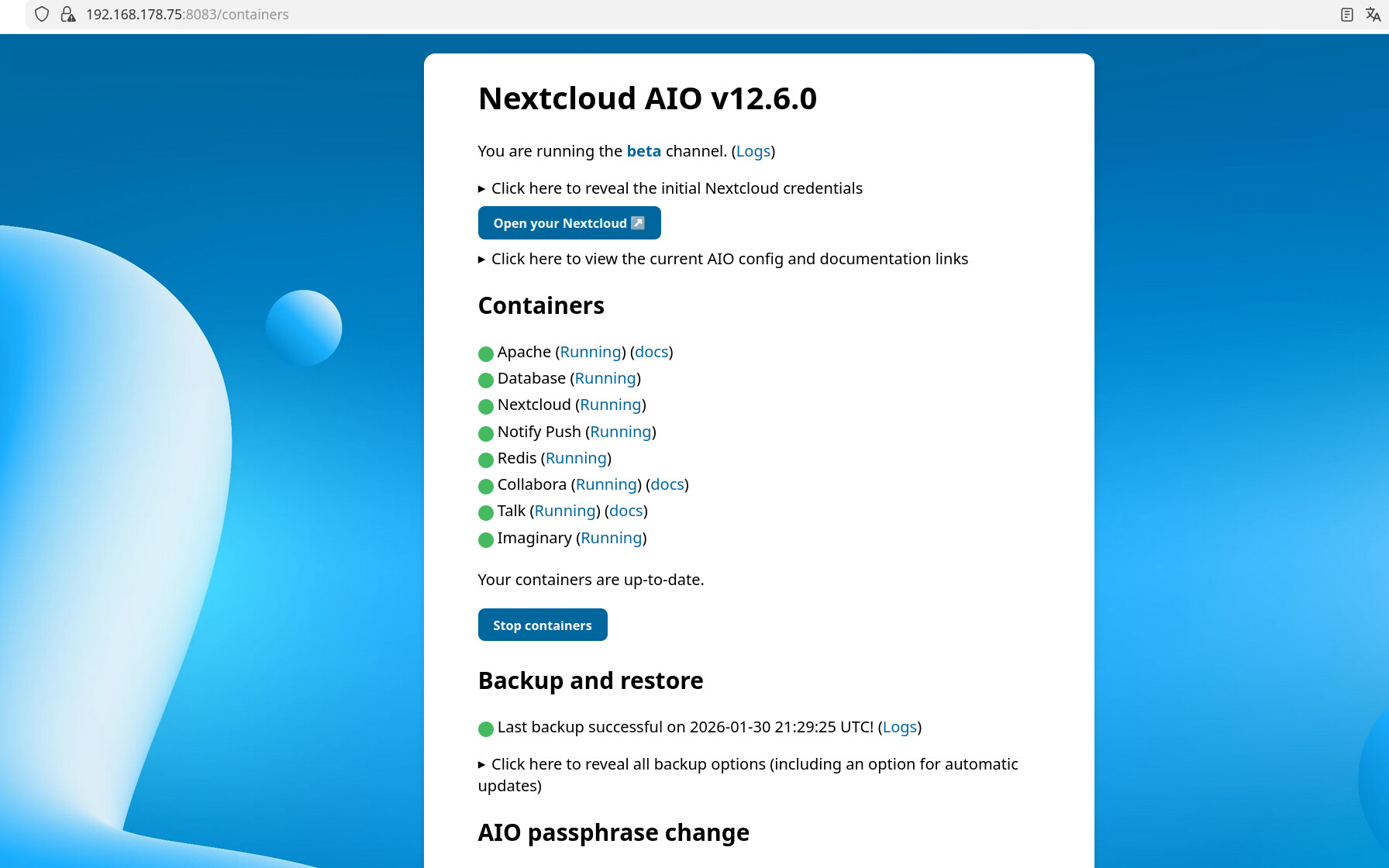
Thanks! And if you open the AIO interface now, do you see version v12.6.0?

Yes

Cool! So the containers seem to all up and running which is good, so the initial error seems to be gone

1 Like

I think we have a misunderstanding. I want to switch from a Synology NAS to a Debian server, and Nextcloud isn’t working on it after restoring it.